
The Action Tracking section of BowTie Pro is an optional module that helps organisations manage corrective and preventive actions in a structured and traceable manner.
The workflow allows users to:
- Create actions
- Assign responsibilities
- Monitor progress
- Track deficiencies
- Review outstanding items
- Close completed actions
The module is designed to support operational risk management and ensure follow-up activities are properly managed.
Action Tracking Types and Workflow Examples
The sections below explain the different workflow types, where Actions are created and viewed, and how an Action moves from creation through to closure.
There can be different Action Tracking Types, each with a different workflow.
The simplest workflow is:
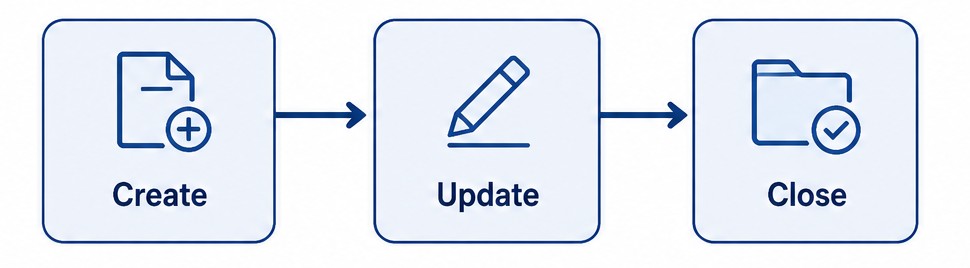
The most complex workflow is:

There are pre-created templates for the common actions for a BowTie:
- Implementation
- Maintenance
- Verification
- Improvement
Each Action Type can also have different fields to capture the data required.
Where Actions Are Created and Viewed
Although actions can be created from other areas, they are usually created from either Hazards or Controls. All Actions can be viewed from the Action List screen.
Actions can also be created automatically via a recurring action. For example, a maintenance action may happen every month and can be set up to be created automatically.
Accessing BowTie Actions
To create a new action:
- Log in to BowTie Pro.
- Navigate to the appropriate Hazard by clicking the Hazards button at the top, then select 👁 (View) to open the overview screen.
- This will open the Hazard Overview screen.
- Now select the “Action Tracking” tab to see whether any Actions have been created for the Hazard.
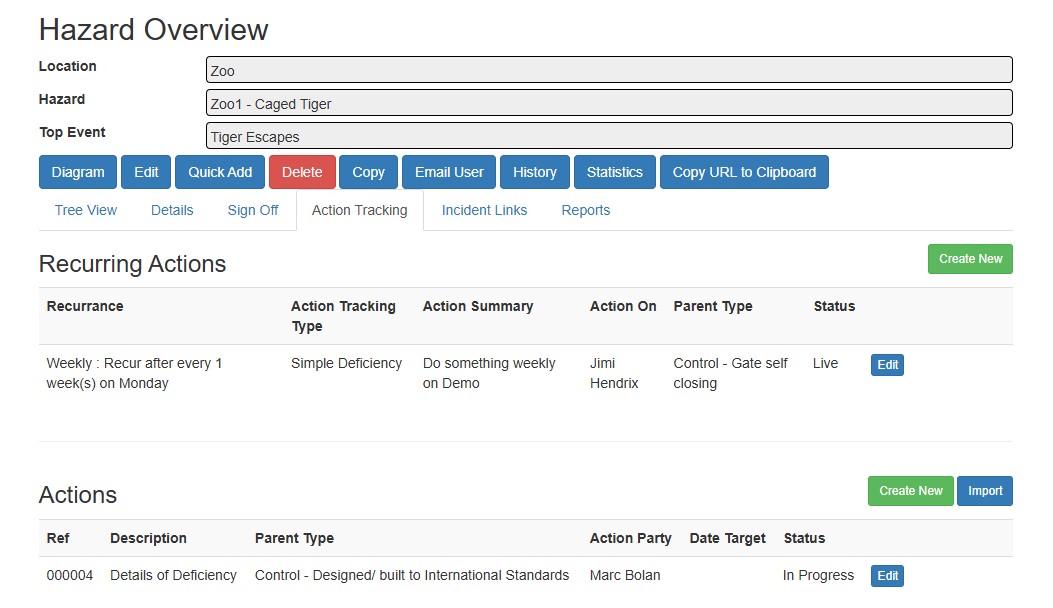
From this screen it is possible to:
- View, edit and create Recurring Actions, including ones for the Controls under the Hazard
- View, edit and create Actions, including ones for the Controls under the Hazard
Accessing Actions from a Control
The Actions for a Control are shown on the Control Edit screen by selecting the Actions tab.
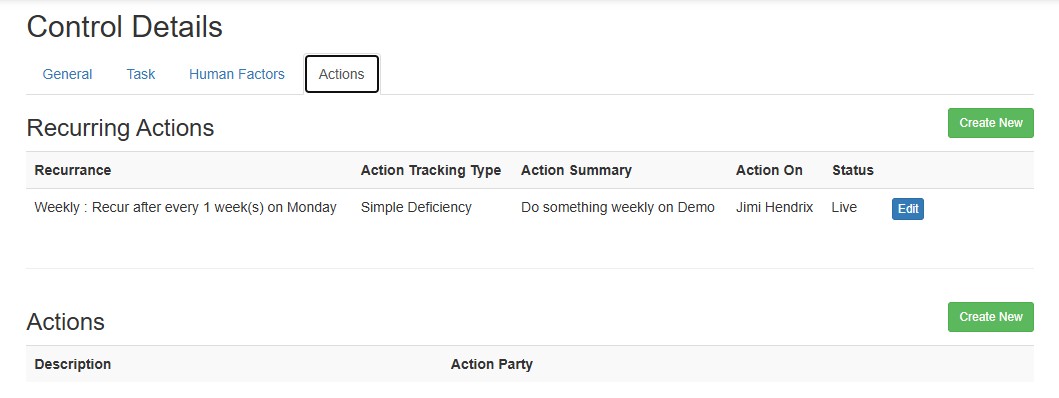
The Control screen also provides links to both Recurring Actions and single Actions in a list.
Understanding the Workflow Structure
The Action Tracking workflow is designed around the lifecycle of an action from creation through completion.
A typical workflow includes:
- Action identification
- Action assignment
- Progress tracking
- Review and follow-up
- Action closure
Each action remains traceable throughout the process.
Action Lifecycle
- Actions move through different operational stages during their lifecycle.
Open Actions
- Newly created actions are initially considered open and require assignment and follow-up.
In-Progress Actions
- Once assigned, actions may move into an active working state while corrective activities are being performed.
Review Stage
- Actions may require review or verification before closure to ensure the issue has been resolved appropriately.
Closed Actions
- Completed and approved actions can be closed once all required activities are finalised.
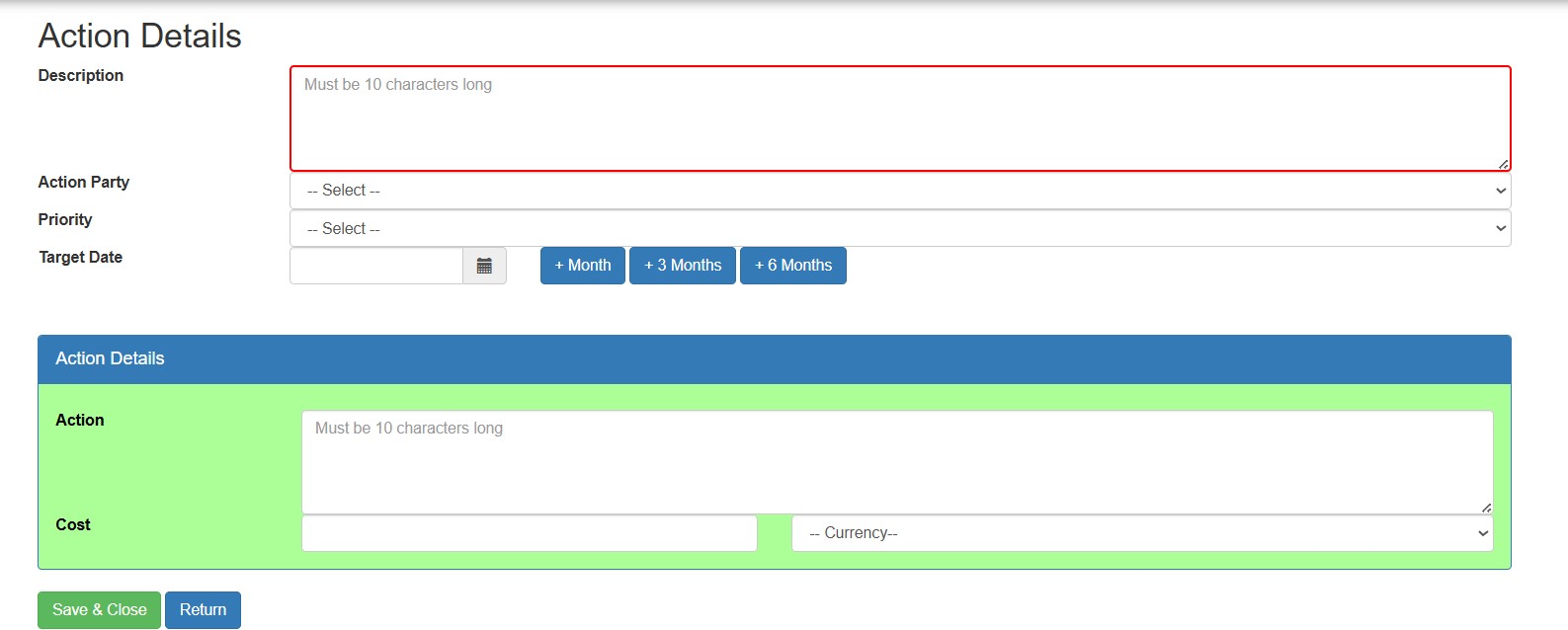
Understanding Action Details
- Each action contains detailed information used throughout the workflow.
Typical action details include:
- Action description
- Responsible party
- Priority
- Target date
- Supporting notes
- Cost information
These details help teams manage accountability and progress tracking.
Using the Action Board View
- The Action Board view provides an alternative visual layout for monitoring actions.
The board view helps users:
- Visualise workflow stages
- Review open items
- Track operational progress
- Monitor active deficiencies
This layout is useful for operational reviews and workflow monitoring.
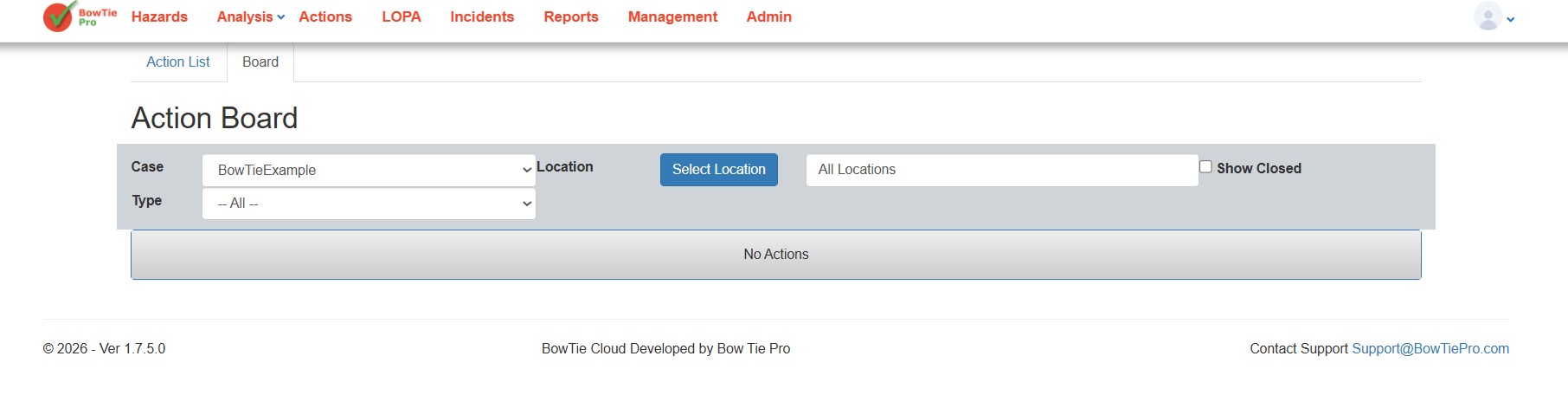
Filtering and Monitoring Actions
Users can apply filters to:
- Show overdue actions
- Display open items only
- Show assigned actions
- Filter by type
- Filter by location
This helps improve visibility and operational follow-up.
Benefits of the Workflow
The Action Tracking workflow helps organisations:
- Improve accountability
- Monitor unresolved issues
- Maintain audit traceability
- Reduce missed follow-ups
- Improve operational oversight
- Ensure corrective actions are completed
Best Practices
When managing actions in BowTie Pro:
- Keep action descriptions clear and specific
- Assign responsible owners
- Monitor overdue actions regularly
- Update action progress consistently
- Review actions before closure
- Use filters and board views for operational visibility