
Overview
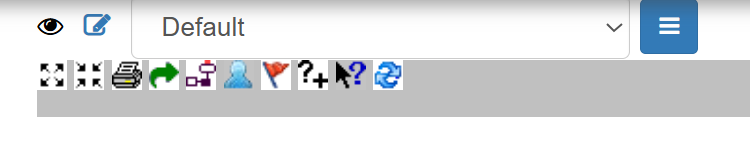
The Diagram Toolbar sits at the top of the BowTie Diagram View and gives you quick control over how a diagram is displayed and shared. Most of its buttons are toggles that show or hide a particular layer of detail, letting you tailor the view to the task at hand — a clean, simple diagram for a presentation, or a fully detailed one for an in-depth review. Which icons appear can depend on your permissions and configuration.
Accessing the Diagram Toolbar
1. Open a Hazard
- Go to Hazards
- Click the 👁 (View) icon next to a hazard
2. Open Diagram View
- On the Hazard Overview screen, click Diagram
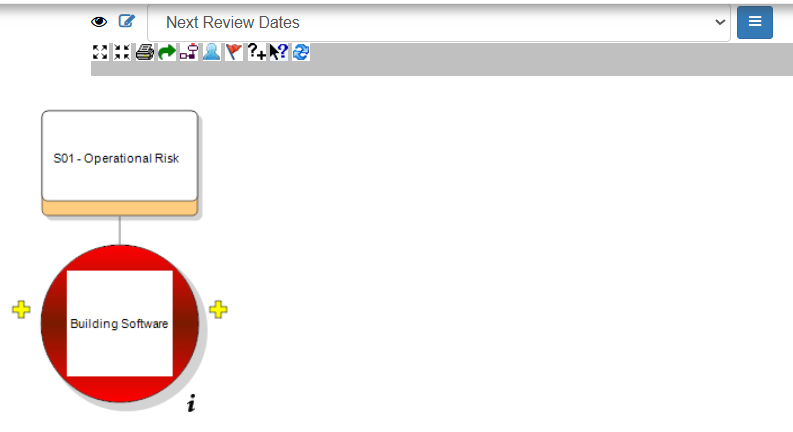
- The toolbar will appear above the diagram workspace.
Toolbar Functions
Working left to right, the toolbar provides the following functions:
- Expand All – opens up every branch of the BowTie so the full structure is visible at once.
- Collapse All – closes the branches back down to a simplified view, useful for large models.
- Export Diagram to Image – saves the diagram as an image file for use in reports, presentations, or documents.
- Copy URL to Clipboard – copies a direct link to the diagram, so you can share it quickly with a colleague.
- Show / Hide Escalation Factors – toggles the display of escalation factors, the conditions that can weaken a control.
- Show / Hide Human Factors – toggles the display of human factors associated with the diagram.
- Show / Hide Control Effects – toggles the display of control effects on the diagram.
- Show / Hide Control Codes – toggles the display of the reference codes assigned to controls.
- Show / Hide Diagram Hints – toggles the on-diagram hints that help explain what you’re looking at.
- Refresh Diagram – reloads the diagram to reflect the latest changes after an update.
Interacting with the Diagram
Alongside the toolbar, you can work with the diagram directly by:
- Selecting elements to focus on a specific threat, consequence, or control.
- Using the + markers on the diagram to add linked items.
- Toggling detail layers on and off to manage complexity as you go.
Best Practices
- Use Expand All to check completeness, then Collapse All to present a clean overview.
- Switch off detail layers (escalation factors, human factors, control codes) when presenting, and back on for detailed analysis.
- Refresh the diagram after making changes so it always reflects the current model.
- Use Export Diagram to Image to drop an up-to-date BowTie straight into reports or slides.
Summary
The Diagram Toolbar gives you precise control over how a BowTie is displayed and shared — from expanding and collapsing the whole structure to exporting it as an image, and toggling individual layers such as escalation factors, human factors, control effects, and control codes. Used well, these controls let you move smoothly between a simple overview and a fully detailed model, so the diagram always suits the audience in front of you.