
Overview
BowTie Pro lets you control how your diagrams look and what they show. These display settings help you improve readability, adjust the diagram’s appearance, and decide exactly which information appears in the view — so the same underlying BowTie can be presented in whatever way best suits the audience. Settings can be configured for hazards, threats, consequences, and controls, as well as fonts, colours, and other visual elements.
Accessing Diagram Display Options
To open the Diagram Options screen:
- Open the required hazard.
- Open the BowTie Diagram view.
- Click the Diagram Options icon from the diagram toolbar.
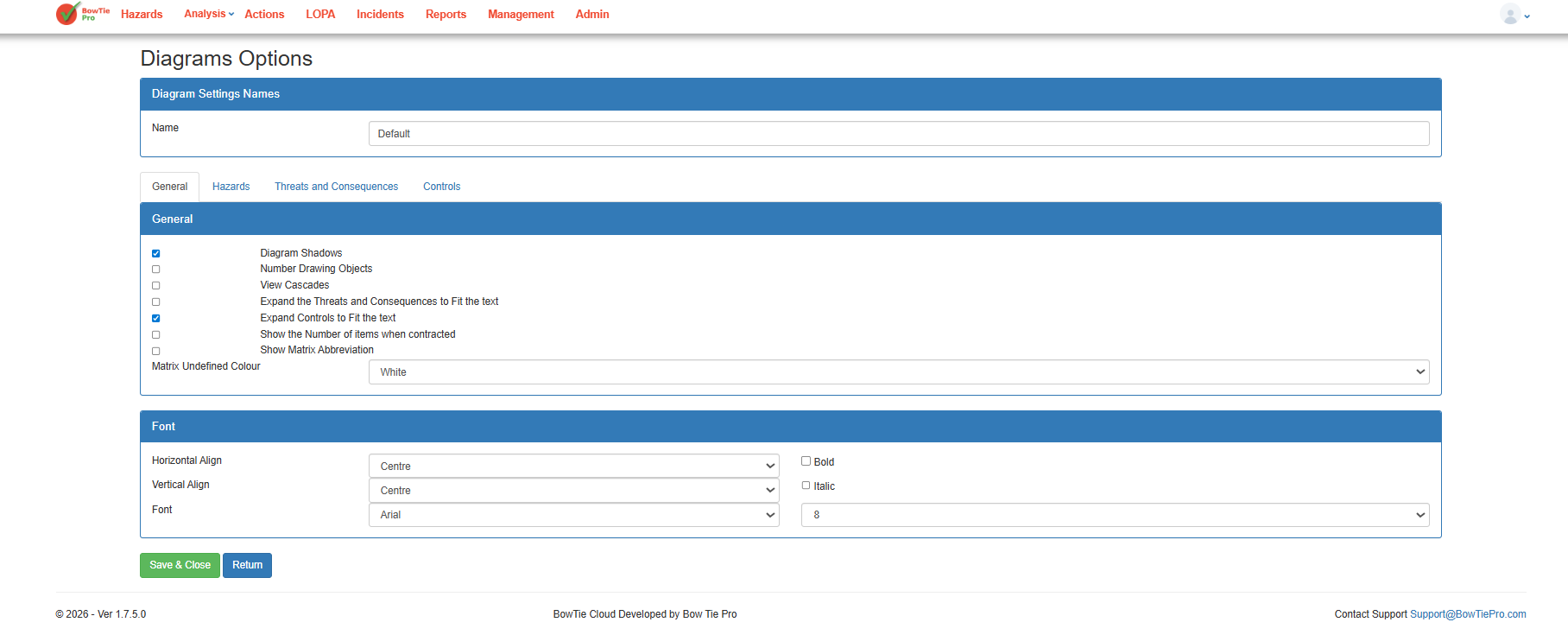
The Diagram Options screen will open.
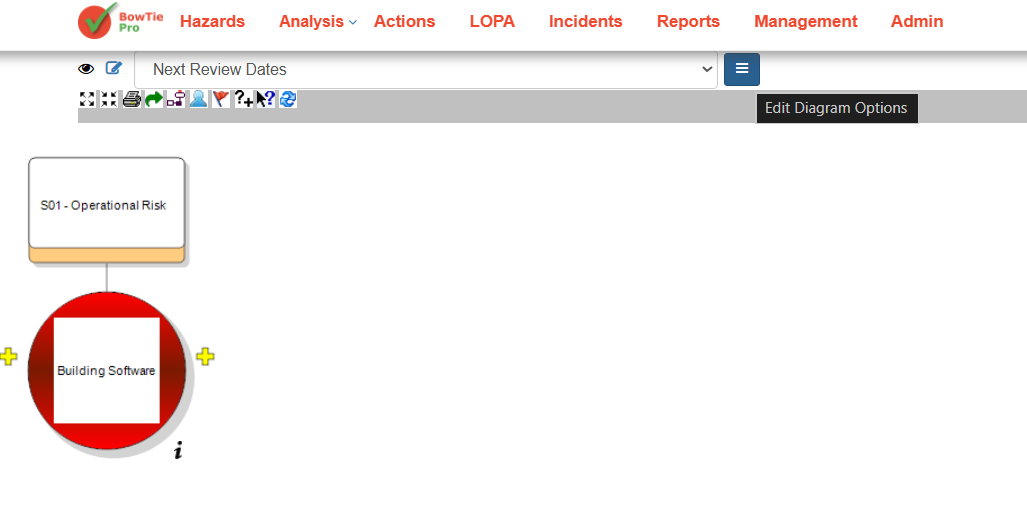
Diagram Settings Name
At the top of the page, users can define a name for the diagram configuration.
Example:
- Default
- Next Review Dates
Naming configurations means you can create several different display setups and reuse them — switching between them later from the view dropdown in the Diagram View.
General Display Options
The General tab contains options that control overall diagram behavior and visibility.
Available settings may include:
- Diagram Shadows
- Number Drawing Objects
- View Cascades
- Expand Threats and Consequences to Fit Text
- Expand Controls to Fit Text
- Show Number of Items When Contracted
- Show Matrix Abbreviation
- Matrix Undefined Colour
Together these let you fine-tune how information is laid out and presented — for example, expanding boxes to fit their text, or showing how many items are hidden inside a contracted branch.
Font Settings
The Font section allows users to customise text appearance within diagrams.
Available options include:
- Horizontal Alignment
- Vertical Alignment
- Font Type
- Font Size
- Bold
- Italic
Adjusting these helps with readability and lets you match the diagram to different presentation styles.
Hazards Tab
The Hazards tab holds the display settings for how hazards appear within the diagram, letting you configure their visual presentation.
Threats and Consequences Tab
The Threats and Consequences tab controls how the threat and consequence nodes appear covering things like their labels, colours, and display behaviour. This is where you tailor the left and right sides of the BowTie to suit a particular report or operational need.
Controls Tab
The Controls tab lets you customise how prevention and recovery controls appear in the diagram, including their display style, colours, text visibility, and layout.
Saving Diagram Options
After making the required changes:
- Review the updated settings.
- Click Save or Save & Close.
- Reopen the diagram to view the updated display configuration if required.
Summary
The diagram display options give you fine control over how a BowTie is presented — from fonts and colours to the visibility of hazards, threats, consequences, and controls. By saving these as named configurations, you can build a small library of reusable views and switch between them instantly, so every diagram is presented in exactly the right way for the audience in front of you.