
The Action List screen in BowTie Pro provides a centralised location for viewing and managing all actions within the selected case or location.
The screen allows users to:
- Search for actions
- Filter results
- Monitor overdue items
- View open actions
- Export action data
- Create new overall actions that are not connected to bowties
This helps organisations maintain visibility and control over corrective and preventive activities.
Accessing the Action List Screen
To open the Action List screen:
- Log in to BowTie Pro.
- Navigate to the top navigation menu.
- Select Actions.
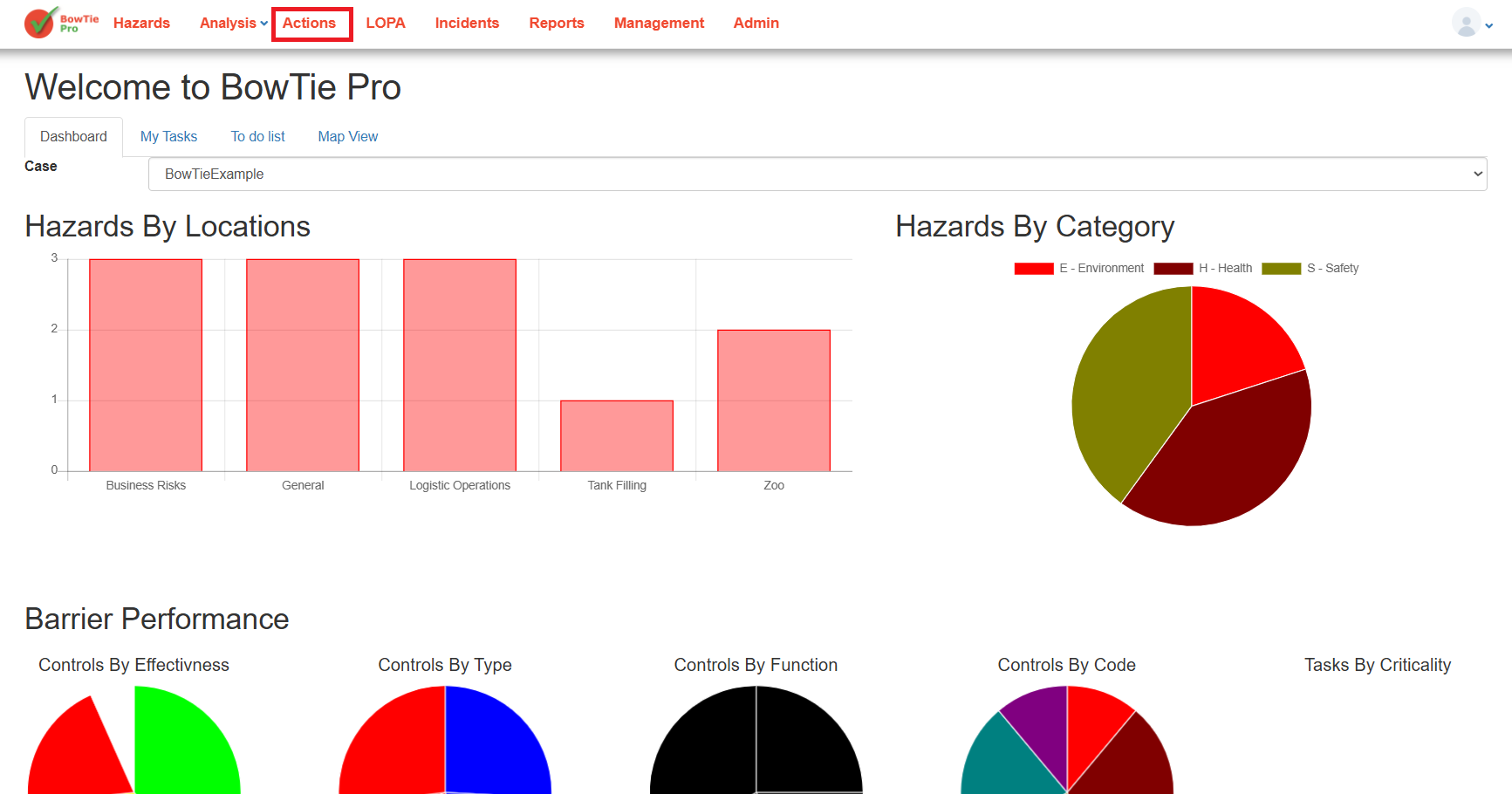
The system opens the Action List screen automatically.
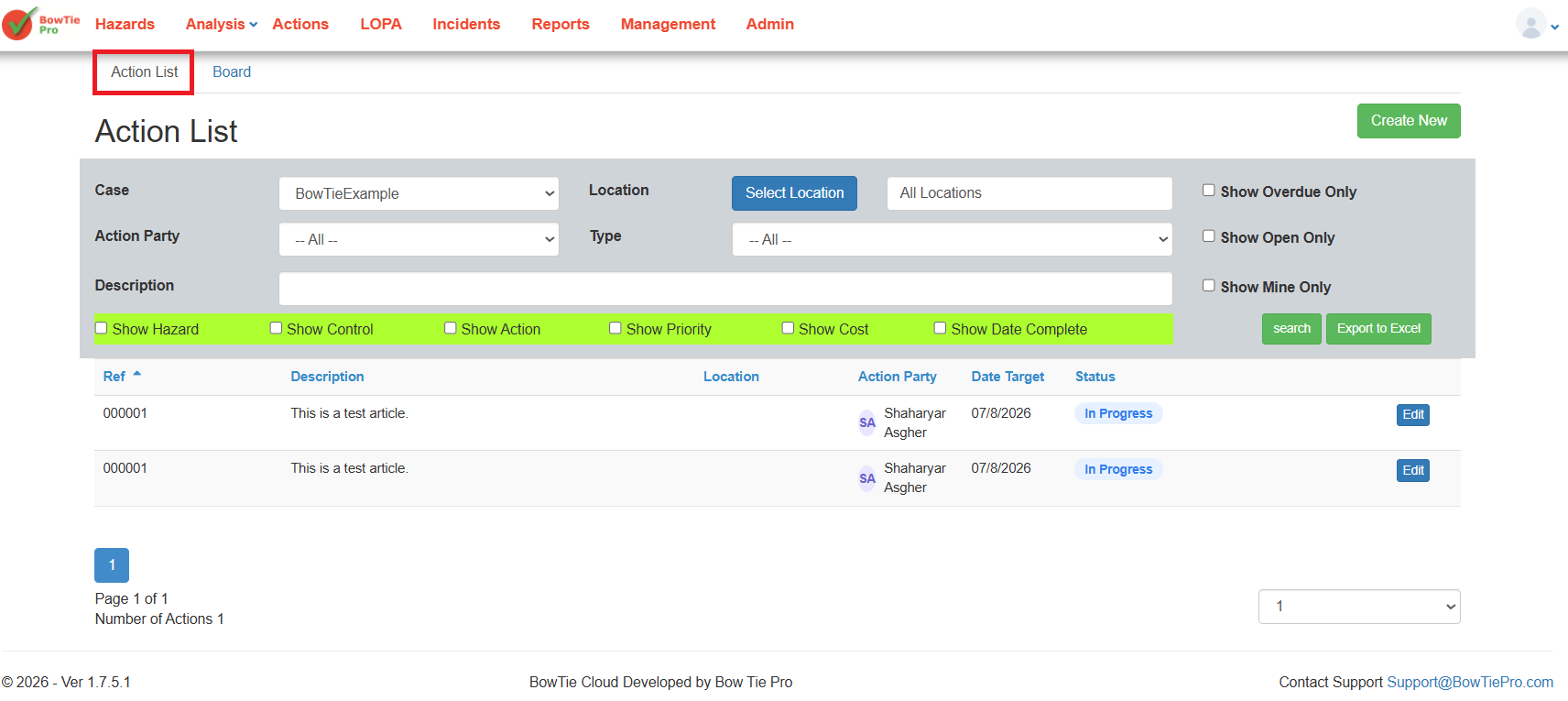
Understanding the Action List Layout
The Action List screen contains several sections used for filtering and managing actions.
Typical sections include:
- Filters
- Search controls
- Action table
- Export options
- Action creation tools
The list view helps users quickly locate and monitor actions across the organisation.
Using Filters
The filter section allows users to narrow down displayed results.
Available filters may include:
- Case
- Location
- Action type
- Assigned party
- Status
Filtering helps users focus on specific actions or operational areas.
Searching for Actions
The search field can be used to locate actions using keywords or descriptions.
This helps users quickly find:
- Specific corrective actions
- Assigned tasks
- Operational follow-ups
- Deficiency-related activities
Viewing Overdue and Open Actions
The screen includes options for displaying:
- Overdue actions
- Open actions only
These filters help organisations prioritise unresolved or delayed activities.
Understanding the Action Table
The action table displays detailed information about each action.
Typical columns may include:
- Action ID
- Description
- Assigned party
- Due date
- Priority
- Status
- Location
Users can select actions directly from the table to review or update details.
Creating New Actions
Users can create new actions directly from the Action List screen.
To create a new action:
- Click Create New
- Enter the required action information
- Save the action
New actions are automatically added to the list after saving.
Exporting Action Data
The Action List screen supports exporting action information.
Users can click:
- Export to Excel
To generate downloadable reports for:
- Reviews
- Audits
- Operational meetings
- Progress tracking
Managing Actions from the List
Users can open actions directly from the list to:
- Update status
- Edit details
- Reassign ownership
- Review progress
- Close completed items
This helps maintain centralised workflow management.
Best Practices
When using the Action List screen:
- Regularly review overdue actions
- Use filters to simplify large action lists
- Keep action statuses updated
- Export reports for operational reviews
- Monitor high-priority items closely
- Review open actions frequently
Proper use of the Action List screen helps organisations improve accountability, visibility, and operational follow-up management.