Overview
As discussed in the page Human Factors in BowTie Analysis link https://bowtiepro.com/knowledgebase/safety-methodology/human-factors-in-bowtie-analysis/ human factors can be integrated into BowTie Pro and one method is to use the Human Factors template created by the Energy Institute
The Human Factors can only be added if the control is marked as being Human Factor influenced. This is changed on the Control screen
Edit the Control
- Go to Hazards
- Navigate to the Hazards screen on the menu
- Click the 👁 (View) icon next to a hazard that you wish to manage
- This opens the Hazard Overview screen
- Expand the tree to the appropriate control that should have the Human Factor
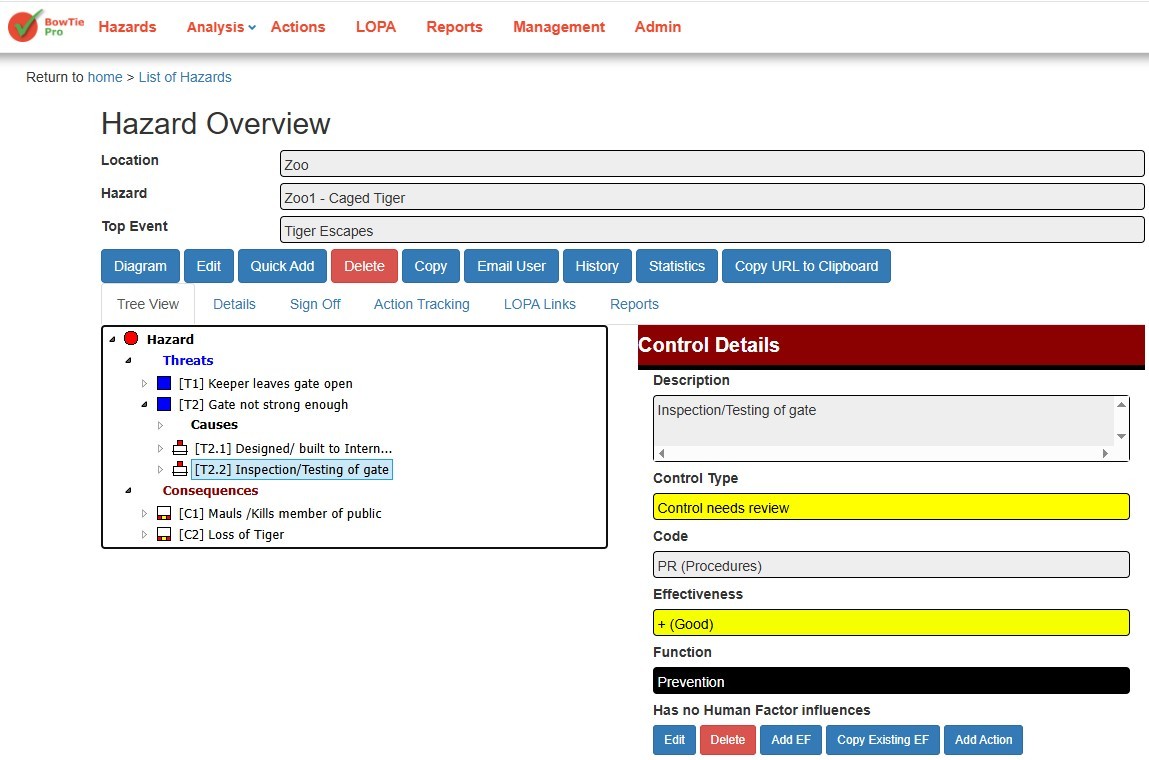
- If the Control allows Human Factors to be added or edited the screen will say “Is Human Factor influenced” otherwise it will say “Has no Human Factor influences”
- To change the Control, click the “Edit” button below the details on the right hand side
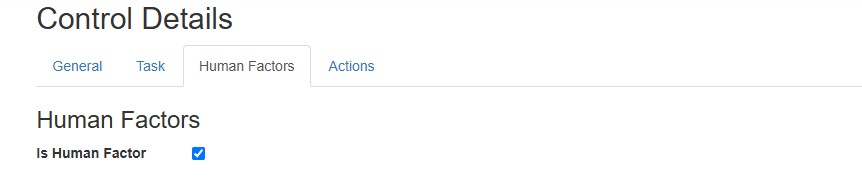
- Now select the Human Factors tab and change the “Is Human Factor” checkbox
- Press “Save & Close” to return to the Hazard Overview screen
- The Human Factor template can now be added and edited
Managing Human Factors through the Hazard overview
From the Hazard Overview screen the human factors can also be added or edited.
- Open the Hazard Overview screen
- Expand the tree to the appropriate control
- Click on this control.
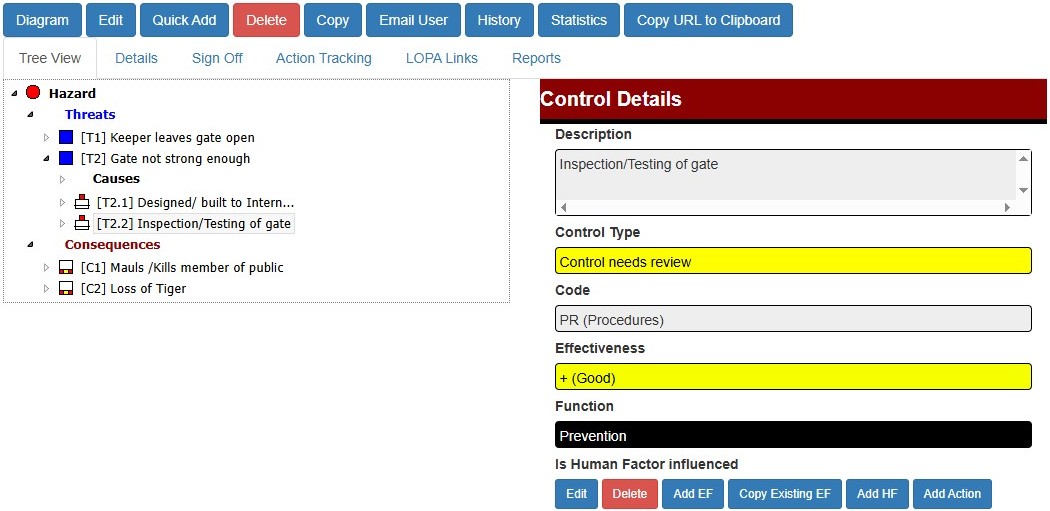
- If Human Factors are allowed the button “Add HF” will be available. Click on this button to add a new Human Factor
- The Energy Institute template will now be displayed. A completed example is shown
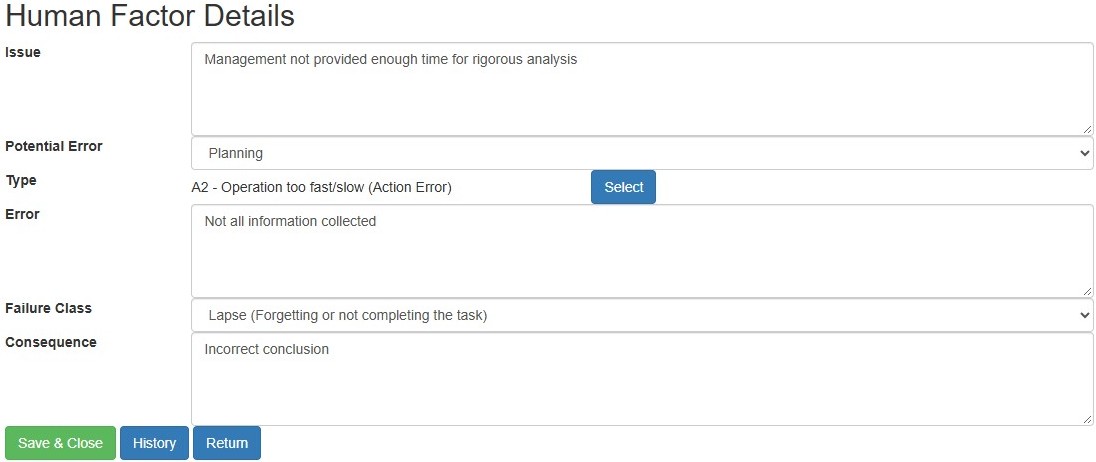
- Once the template is entered click the “Save & Close” button.
- The Human Factor item will be displayed below the Control.
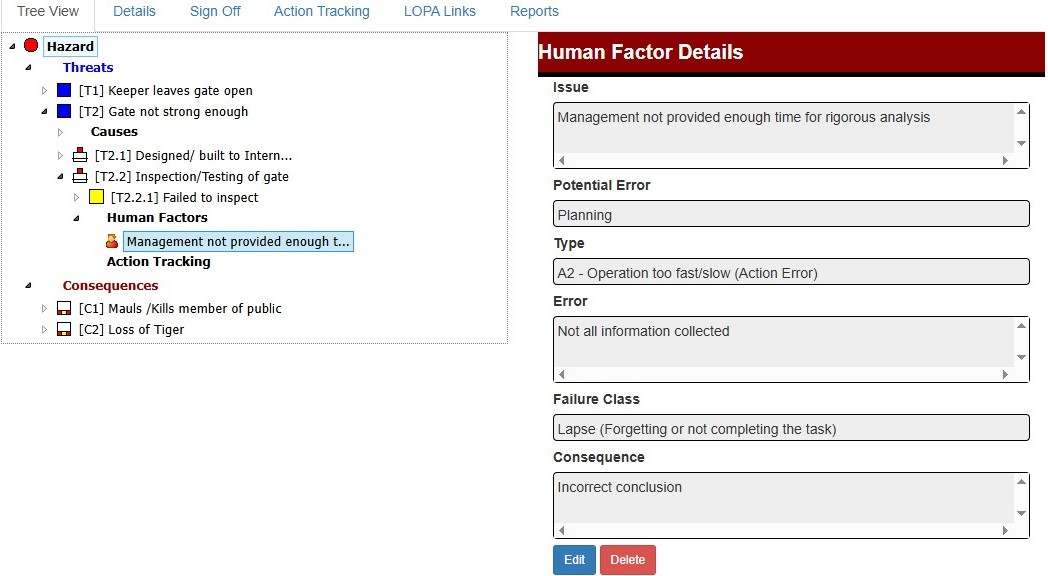
- If required the item can be modified or deleted by clicking the Edit or Delete buttons
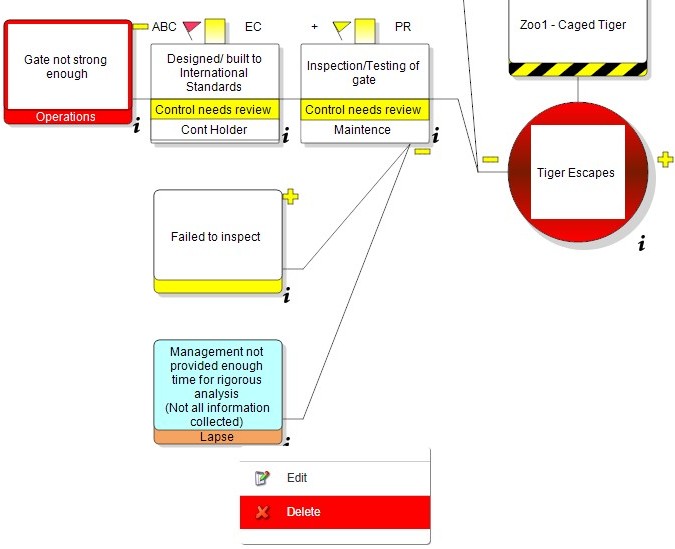
The Human Factor items can also be managed in the Diagrams, where the items are shown with a light blue background.