
Overview
Recurring Action are not actions but templates that create Action automatically based on the frequency. Unlike Actions which can be added from a number of items Recurring Actions are only available to be created from Hazards and Controls and are usually associated with Maintenance and Verification tasks.
Creating a new Recurring Action
- To create a new Recurring Action navigate to the appropriate Hazard or Control as shown
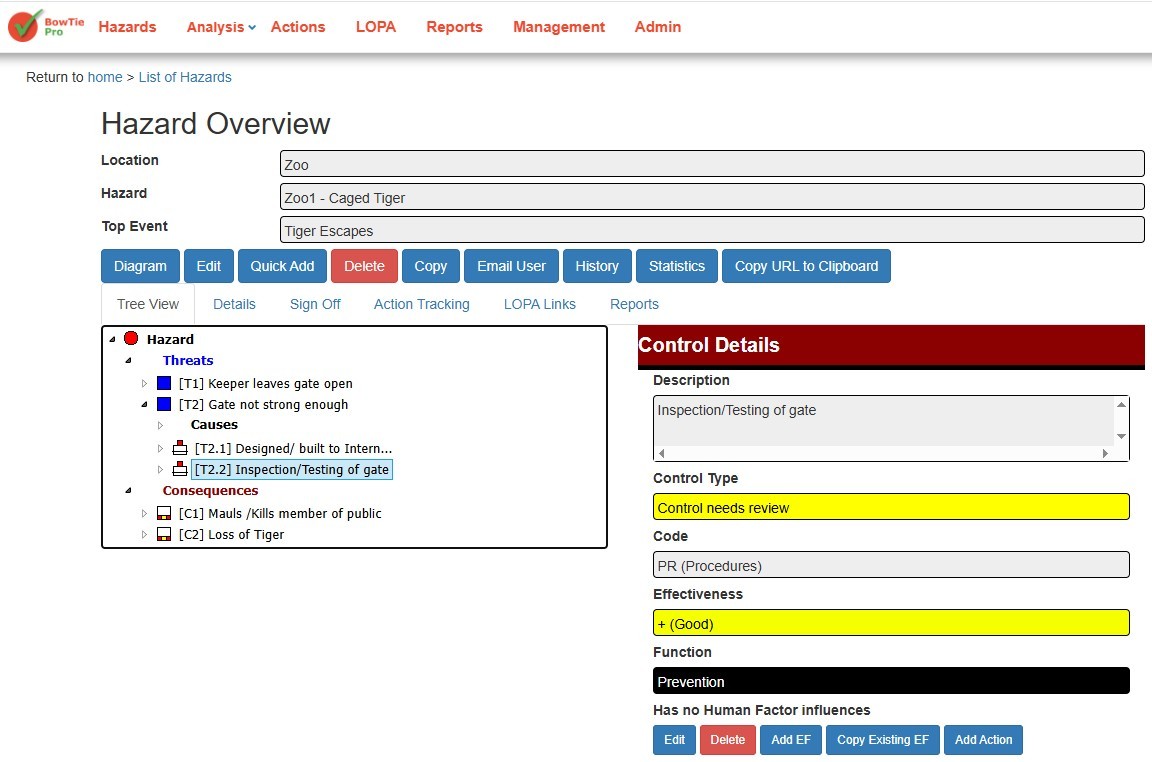
- Click the “Edit” button to open the Control and then click the “Actions” tab. This will list the Recurring Actions at the top and the Actions below them
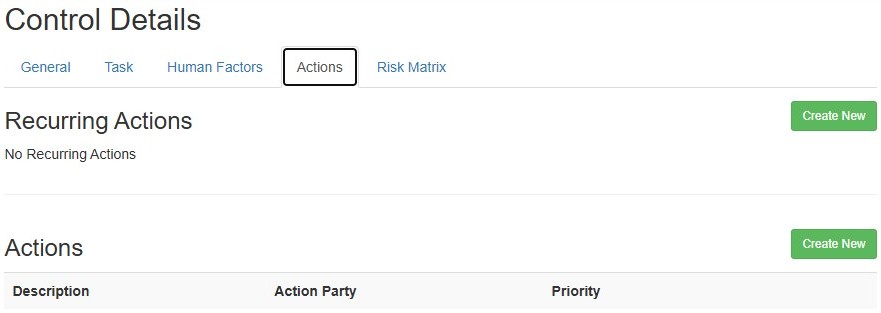
- When the “Create New” button is clicked in the Recurring Actions section the screen allowing the setting will be displayed.
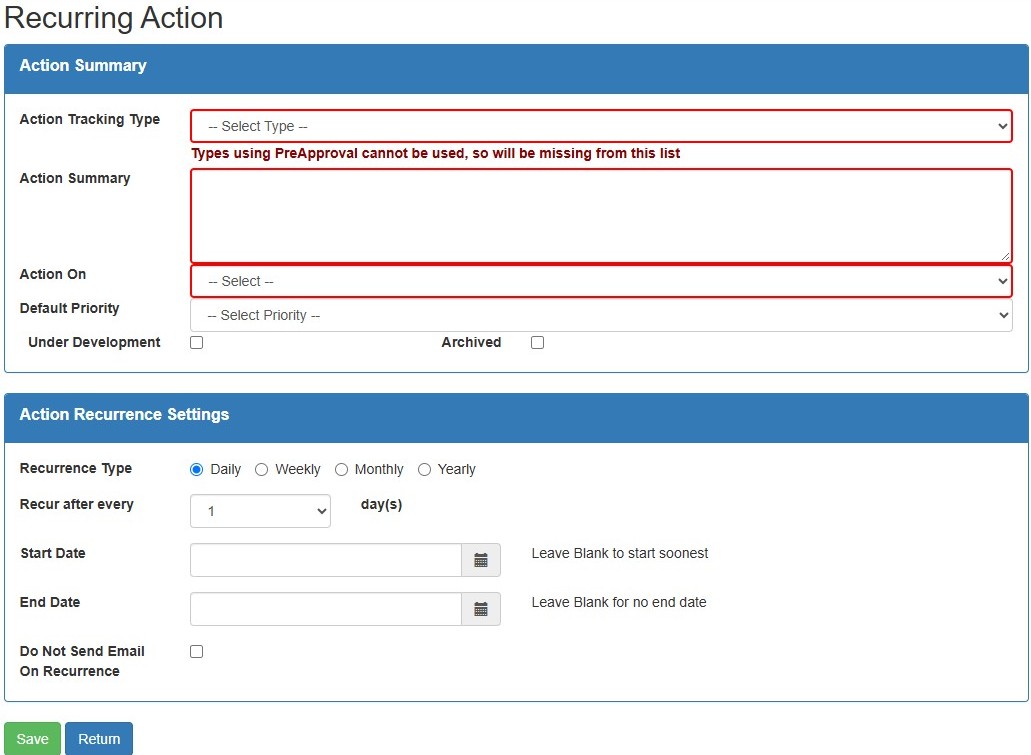
- If there is more than one “Action Tracking Type” then the workflow can be selected, if there is only one Type then the dropdown will be hidden.
- A summary of the Action is required along with the person who the Action will be assigned to.
- If the Priority is used in the workflow this will be shown
- The start date, end date and frequency is shown in the “Action Recurrence Settings”
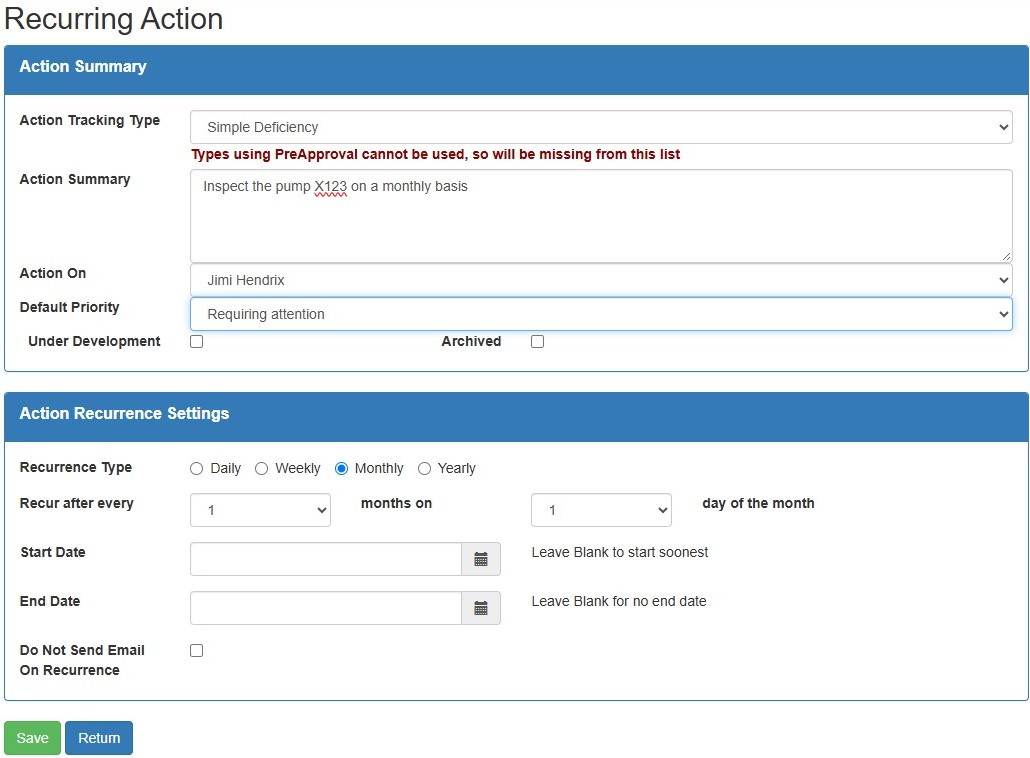
- When the Action is created from the Recurrence Template an automatic email will be sent out to the “Action On” user. This can be prevented by clicking “Do Not Send Email on Recurrence”
- When the “Save” button is clicked then the system will return to the Control screen
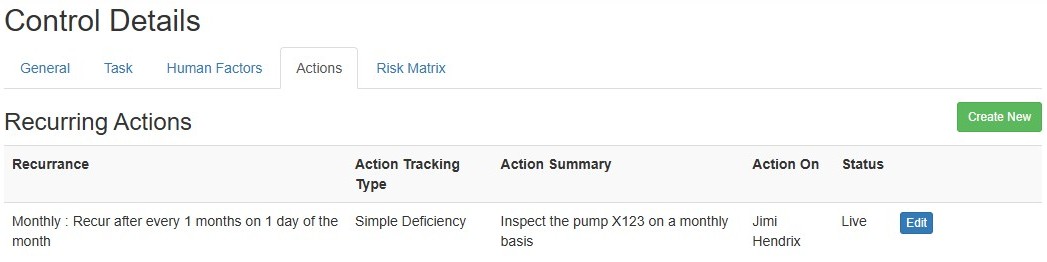
- The item can be edited from the list. The item cannot be deleted but it can be disabled by clicking the “Archived” check box
Viewing all Recurrence Actions
- All Recurring items can be viewed in the Recurring Action List by clicking the “Actions” then selecting “Recurring Actions” tab
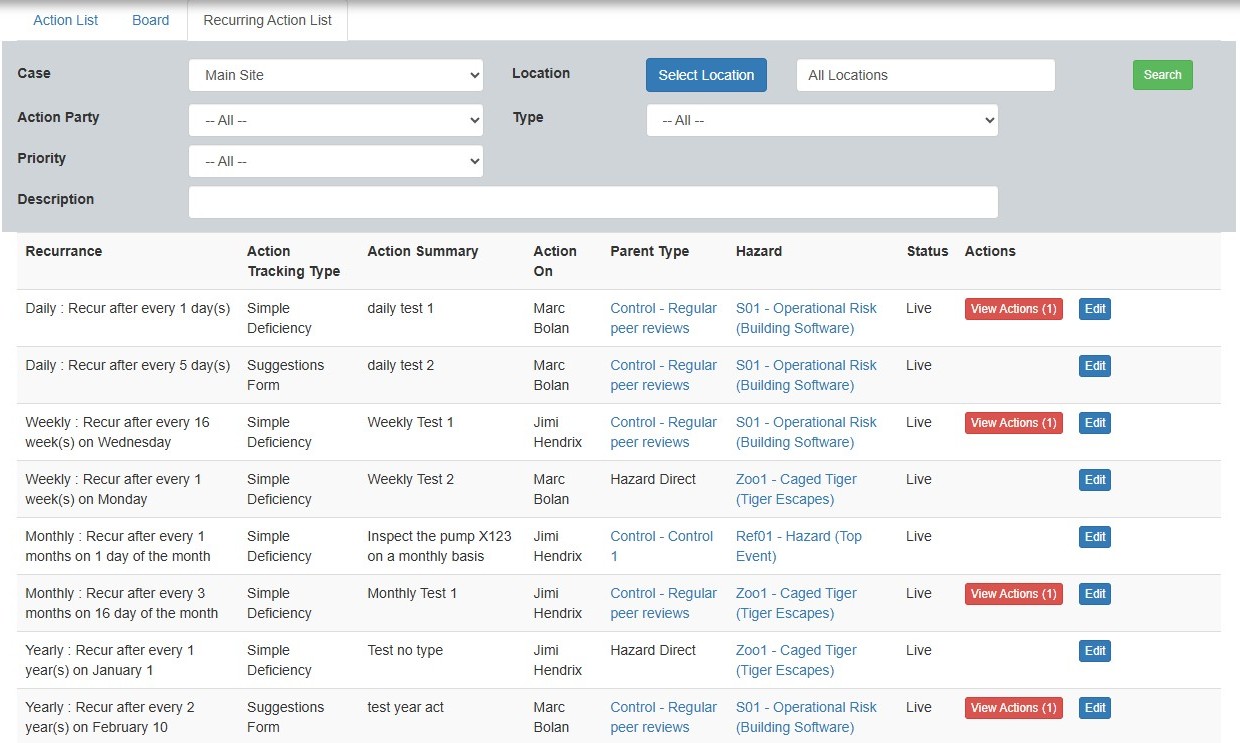
- On the Recurrence List there is the ability to not only “Edit” the items but if any Actions have been generated then the number will be displayed with “View Actions” button. Clicking the button will be show a filtered list of Actions generated from the Recurrence Template.