
Overview
The Incident Details screen is the central workspace for viewing and managing an individual Incident in BowTie Pro. It provides access to most of the tools and functions you need to work with an Incident in one place.
Opening the Incident Details Screen
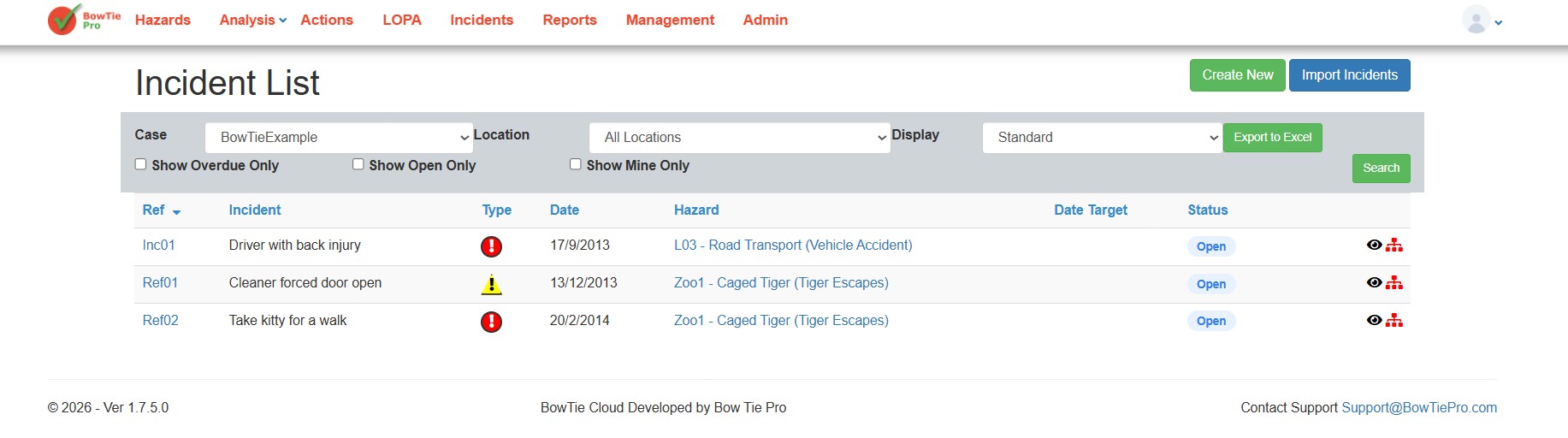
- Go to Incidents
- From the top menu, click Incidents
- Open a Incident
- Locate the required Incident in the list
- Click the 👁 (View) icon next to the Incident
- This opens the Incident Details screen.
Incident Information Section
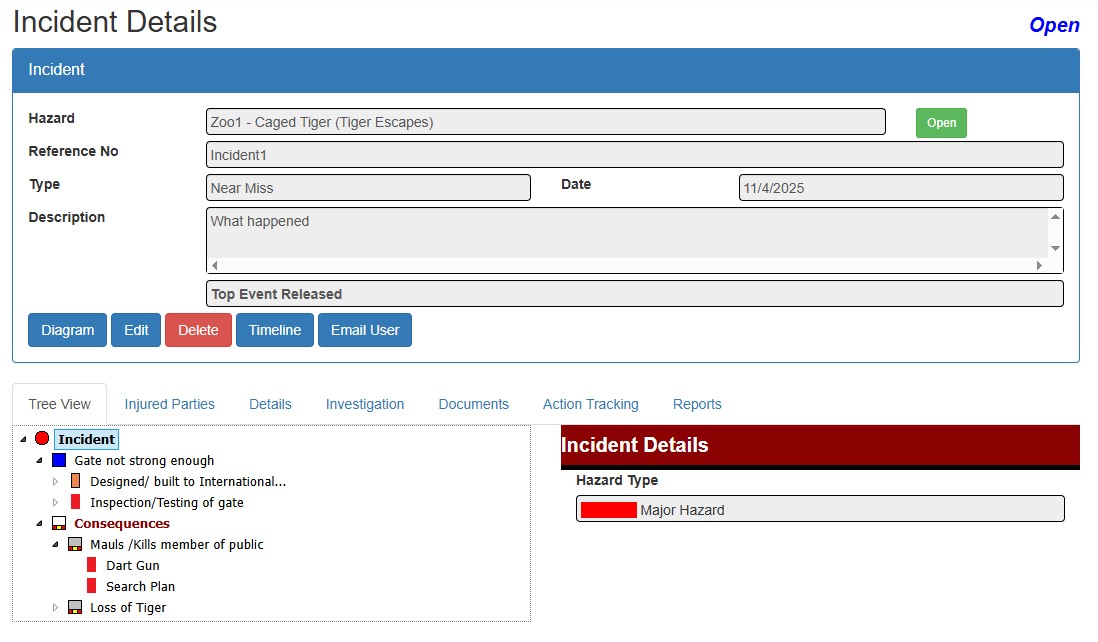
At the top of the screen, the following information is displayed:
- Hazard and Top Event – identifies the hazard and the associated top event.
- Reference Number – provides a unique reference for the Incident.
- Type – identifies the category or type of Incident.
- Incident Date – shows when the Incident occurred.
- Incident Description – provides a summary of the Incident.
Together, these fields help you quickly identify the Incident you are viewing and understand its context.
Action Buttons
A row of action buttons gives you quick access to the main things you can do with the Incident:
- Diagram – opens the BowTie diagram view for the Incident.
- Edit – opens the Incident details so you can modify the details.
- Delete – removes the Incident from the system.
- Timeline – displays a chronological list of events associated with the Incident, starting with the earliest recorded date.
- Email User – shares the Incident information by email.
Navigation Tabs
Below the action buttons, a set of tabs organises the deeper detail behind the Incident:
- Tree View – displays the BowTie structure, including threats, consequences, and their associated controls.
- Injured Parties – displays information about individuals affected by the Incident, where applicable.
- Details – shows additional information about the Incident.
- Investigation – provides access to the Incident investigation information.
- Documentation – provides access to documents associated with the Incident.
- Action Tracking – displays linked actions and follow-up activities.
- Reports – provides access to reporting options for the Incident.
Together, these tabs connect a single Incident to the wider BowTie Pro ecosystem
Tree View Structure
The Tree View is where the incident itself takes shape, showing the single threat and if the top event is released the consequences branching from the Incident all automatically added based on the hazard information.
Threat are the causes that lead to the top event. For example:
- Cost overruns
- Technology failure
- Staff retention
Consequences are the outcomes that may follow because the top event happened. For example:
- Loss of credibility
- Sales not meeting expectations
- Demoralised staff
Expanding any threat or consequence in the tree reveals the controls linked beneath it, so you can see the full cause-barrier-outcome structure in one place.
Summary
The Incident Details screen is the central workspace for reviewing and managing an Incident in BowTie Pro. It brings together key Incident information, much of which is derived from the associated BowTie structure, along with linked controls, investigation records, actions, documentation, and reporting tools.
The screen helps you navigate an Incident efficiently and understand how its information connects to the wider bowtie structure and associated actions within BowTie Pro.