
The Incident List screen in BowTie Pro provides a centralised view of recorded incidents within a selected case or location. It helps users monitor incident status, identify overdue items, review outstanding incidents and manage incident records.
The screen allows users to:
- Search for incidents
- Filter incidents by relevant criteria.
- Monitor overdue items
- View open incidents
- Export incidents data
- Access individual incidents to review and manage their details.
Using the Incident List screen helps organisations maintain visibility of incidents arising from identified bowtie scenarios and supports effective follow-up, accountability and operational oversight.
Accessing the Incident List Screen
To open the Incident List screen:
- Log in to BowTie Pro.
- Navigate to the top navigation menu.
- Select Incidents
This opens the Incident List screen.
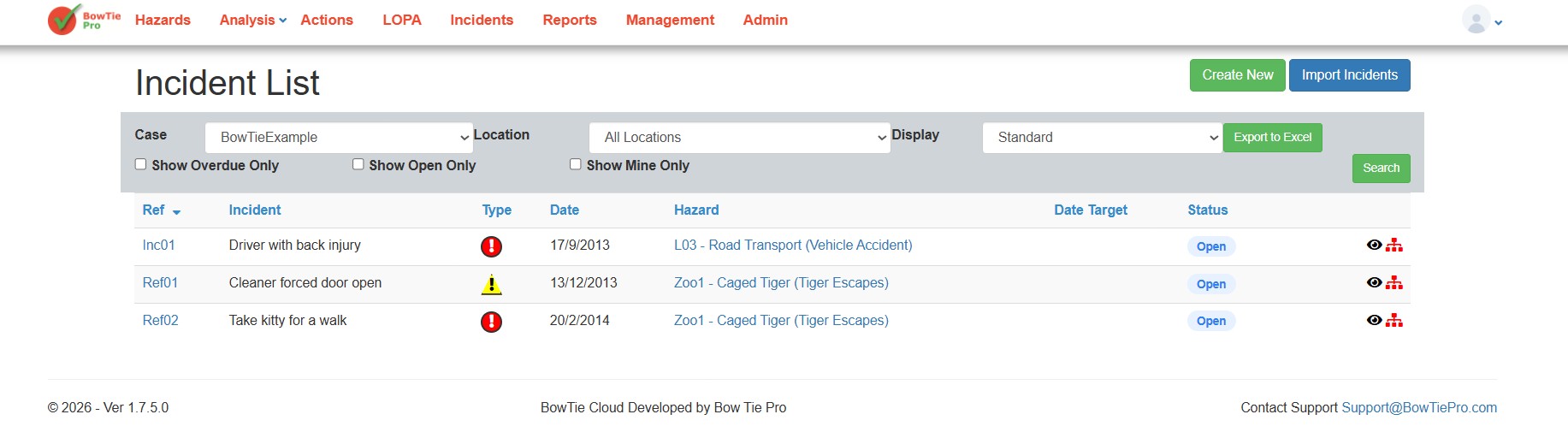
Understanding the Incident List Screen
The Incident List screen provides an overview of recorded incidents within the selected case.
The screen includes:
- Incident reference: A unique reference used to identify an incident.
- Description: A summary of the incident.
- Incident type: The category assigned to the incident.
- Associated hazard: The hazard linked to the incident.
- Target date: The date by which the relevant activity is expected to be completed.
- Status: The current stage of the incident.
- Open and overdue indicators: Information to help identify incidents that remain unresolved or require attention.
Users can also:
- Filter incidents
- Search by location
- Export incident data
- View open incidents only
Using Filters
The filter section allows users to narrow down displayed results.
Available filters may include:
- Case: Narrow the results to a selected case.
- Location: Display incidents associated with a particular location.
- Status: Filter incidents according to their current status.
Filtering helps users focus on specific incidents or operational areas.
Viewing overdue and Open Incidents
The Incident List screen provides options for identifying overdue incidents and viewing open incidents, helping users prioritise outstanding activities.
- Overdue incidents: Use the relevant filter or indicator to identify incidents that have passed their target dates and require review, where applicable.
- Open incidents: Display incidents that remain open and may require further investigation, action or follow-up.
Regularly reviewing these records helps users identify delays, monitor progress and ensure that outstanding incidents receive appropriate attention.
Exporting Incident Data
The Incident List screen supports exporting incident information for reporting and further analysis.
To export incident data:
- Open the Incident List screen.
- Apply any relevant search terms or filters.
- Select Export to Excel.
- Open the exported file to review, analyse or share the incident information as appropriate.
Where supported, applying filters before exporting can help users focus their reports on a particular case, location or incident status.
Exported data can support operational reviews, internal reporting and discussions about outstanding incidents.
Managing Incidents from the List
Users can open Incidents directly from the list to:
- Update status
- Edit details
- Reassign ownership
- Review progress
- Close completed items
This helps maintain centralised workflow management.
Best Practices
To get the most out of the Incident List screen:
- Review overdue incidents regularly to identify delays and determine whether further action is required.
- Use search and filters to focus on relevant cases, locations or incident statuses.
- Keep incident records up to date by maintaining accurate descriptions, target dates, statuses and ownership details.
- Monitor open incidents to ensure that outstanding activities continue to receive appropriate attention.
- Export data when needed to support operational reviews and reporting.
- Prioritise significant incidents according to their potential impact and organisational procedures.
- Review responsibilities and progress to support accountability and timely follow-up.
Summary
The Incident List screen in BowTie Pro provides a central location for viewing, filtering, exporting and managing incident records.
By using search and filters effectively, reviewing open and overdue incidents, and maintaining accurate records, organisations can improve incident visibility, strengthen accountability and support consistent operational follow-up.