
The Action Tracking module in BowTiePro allows users to create, assign, and manage actions related to operational risks, deficiencies, audits, and assessments.
Actions help organizations ensure that identified issues are properly tracked and resolved through a structured workflow.
Accessing the Action Tracking Module
To create a new action:
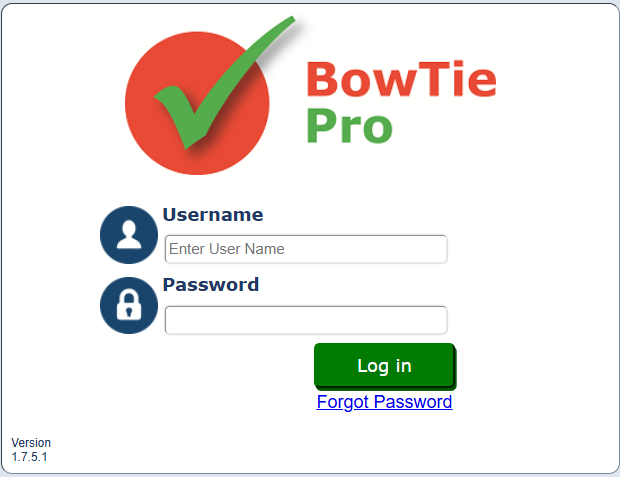
- Log in to BowTiePro.
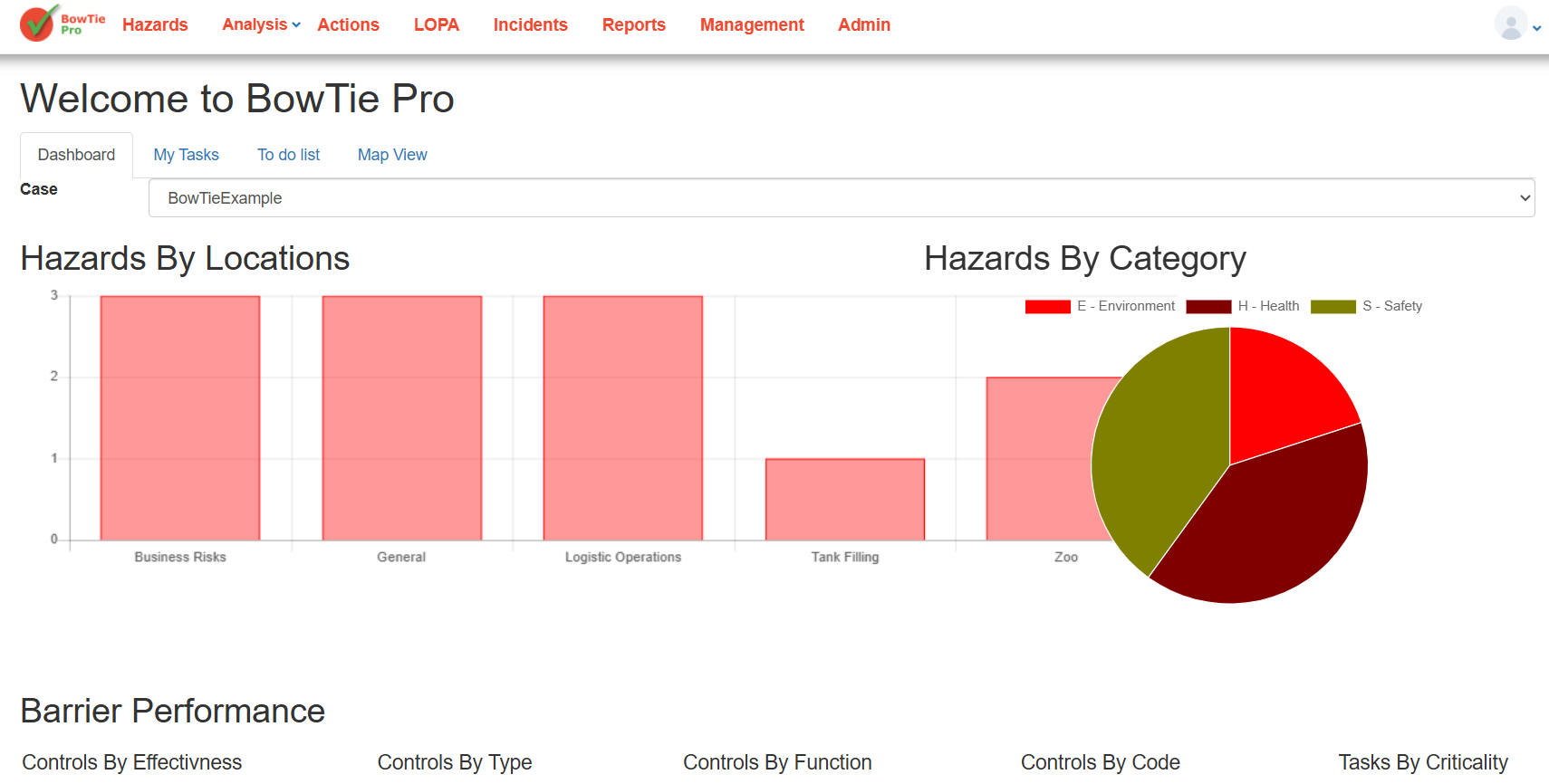
- Navigate to the top navigation menu.
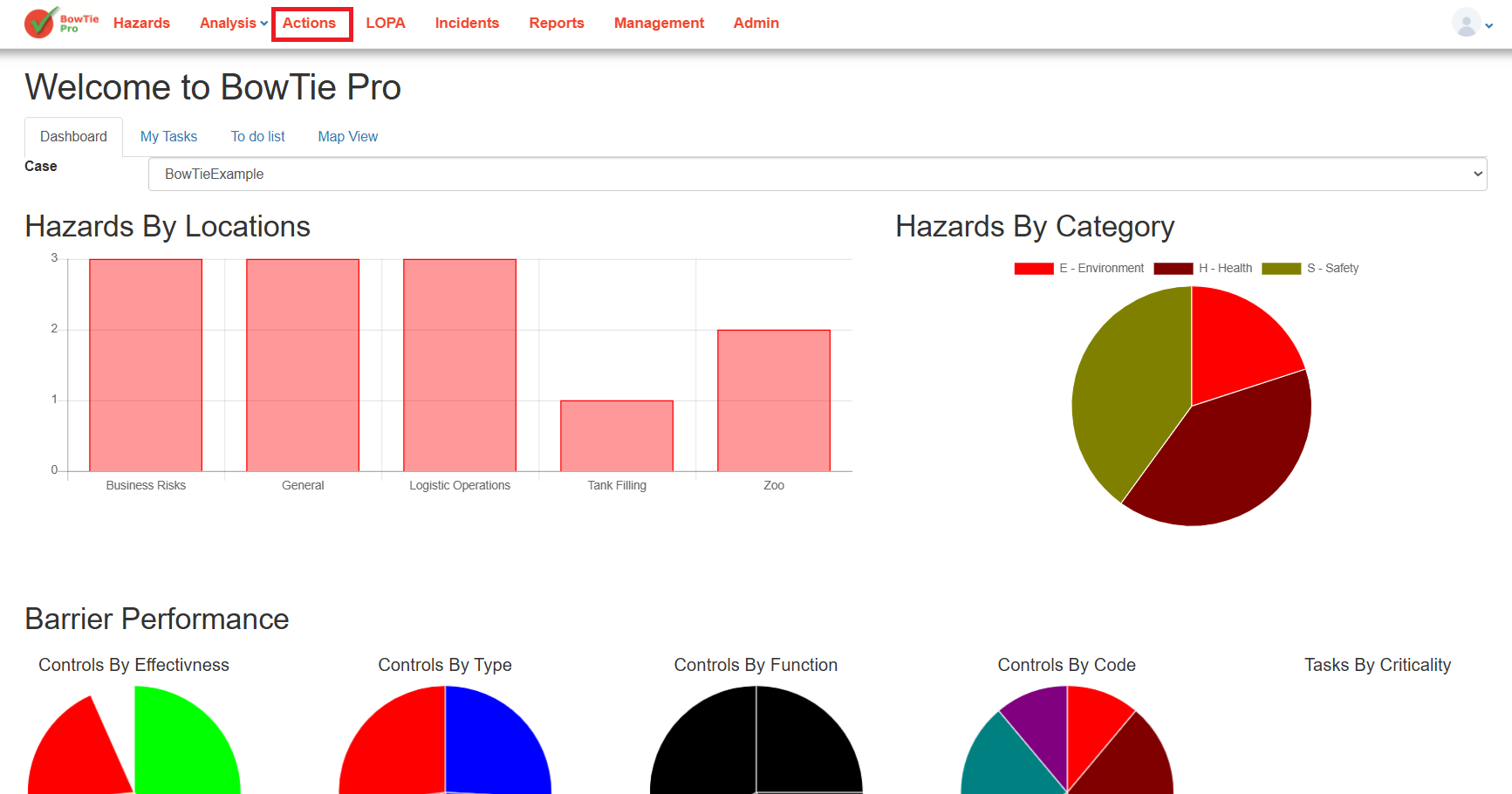
- Select Actions.
- Open the Action List screen.
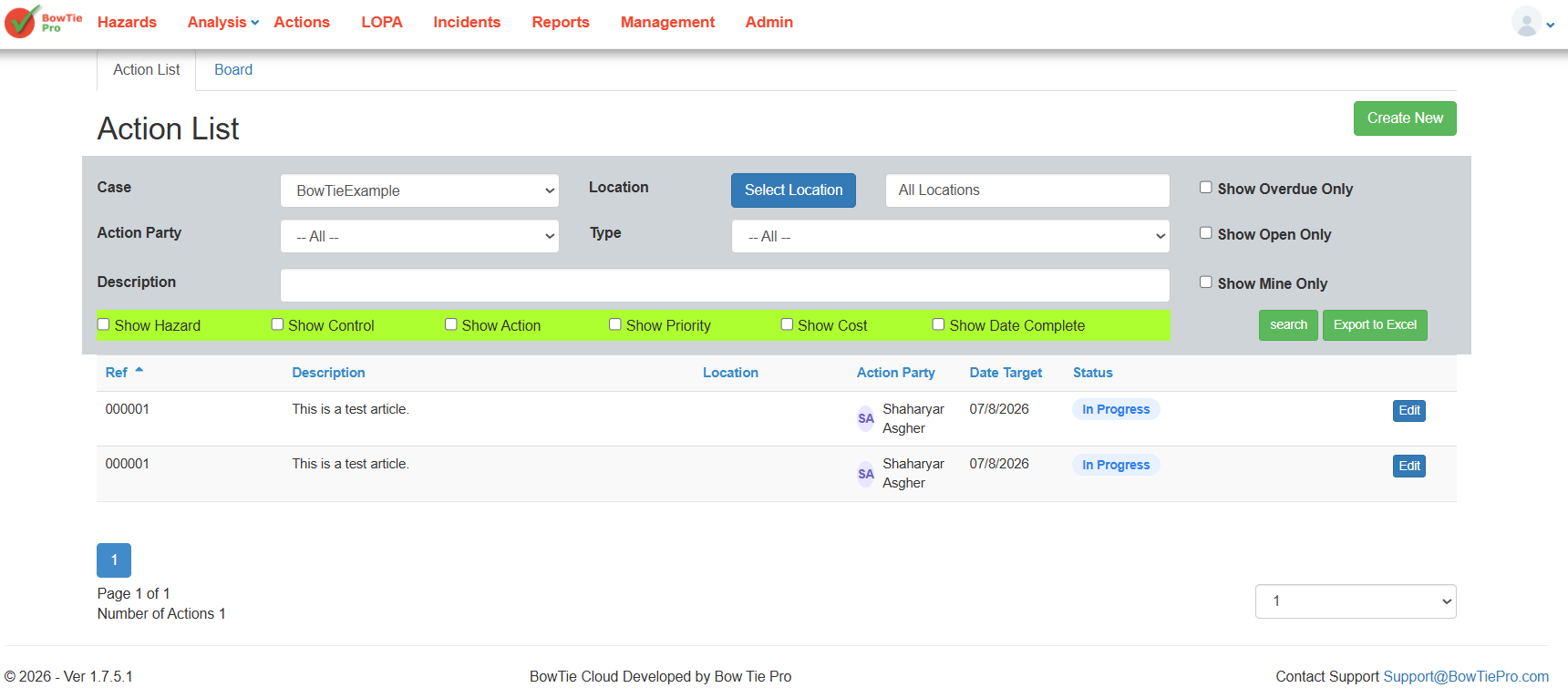
- Click Create New.
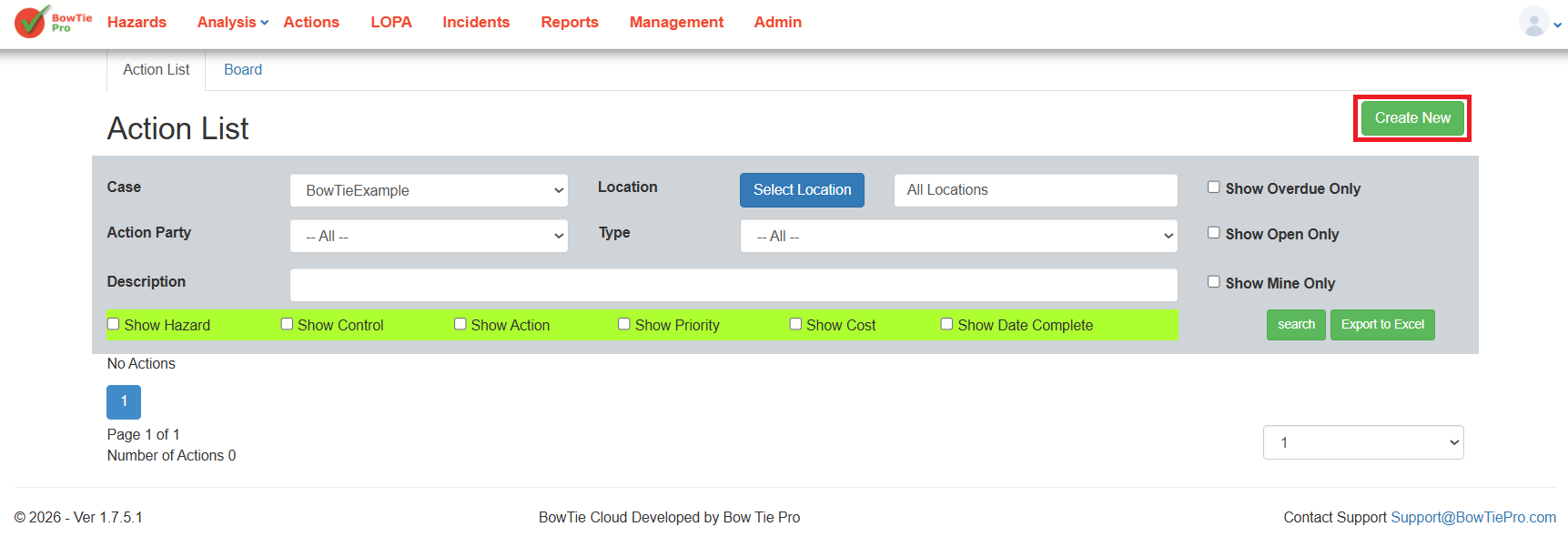
Creating a New Action
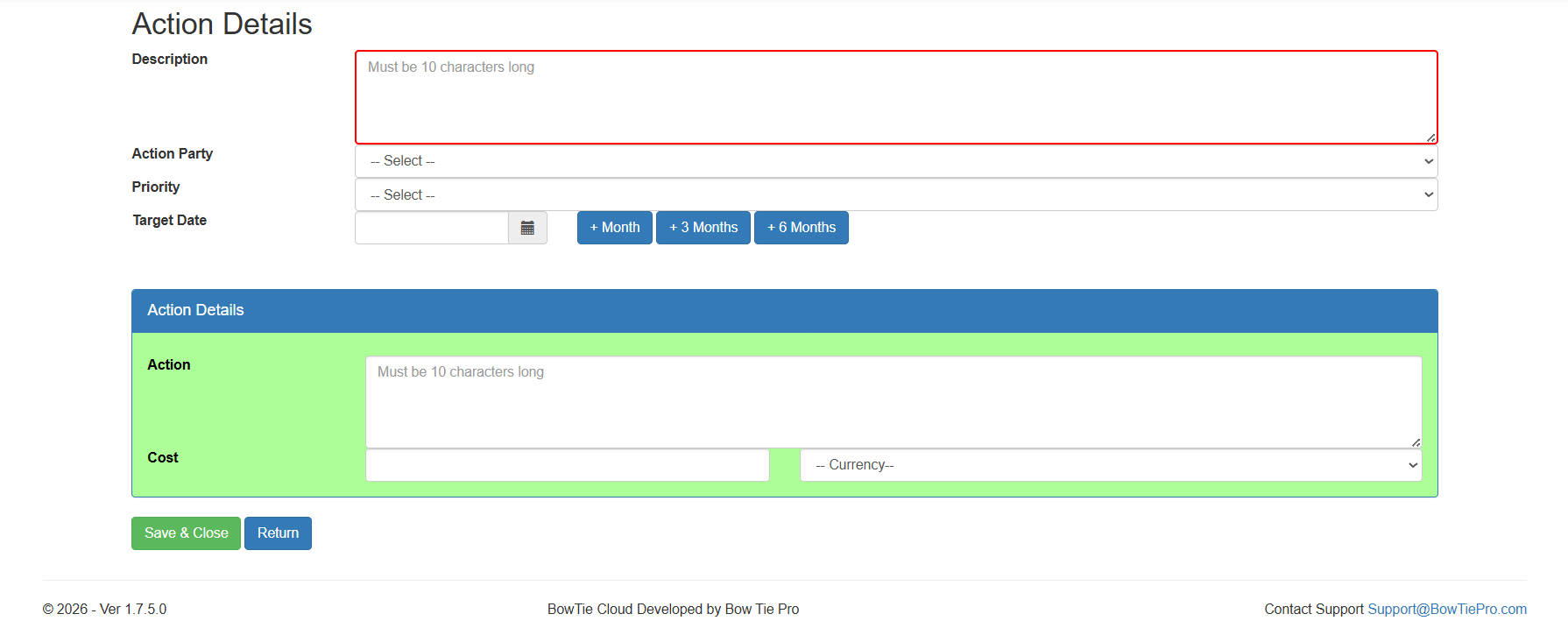
When creating a new action, users must provide the required action details.
The Action Details screen includes fields for:
- Description
- Assigned party
- Priority
- Target completion date
- Action details
- Cost information
These fields help organizations manage accountability and track corrective activities effectively.
Entering the Action Description
The Description field is used to define the issue or task that needs to be addressed.
Action descriptions should:
- Clearly explain the required activity
- Be specific and actionable
- Include enough detail for the assigned party
Example:
Review and update operational maintenance procedures for critical equipment.
Assigning the Responsible Party
The Action Party field allows users to assign responsibility for completing the action.
This helps:
- Establish accountability
- Improve follow-up tracking
- Clarify ownership of corrective activities
Users can select the responsible person or team from the available list.
Setting the Priority
The Priority field defines the urgency or importance of the action.
Prioritization helps organizations:
- Focus on high-risk issues first
- Manage workloads effectively
- Improve operational response times
Priority levels may vary depending on system configuration.
Defining the Target Date
The Target Date field specifies when the action should be completed.
Users can:
- Select a custom target date
- Use quick date options such as:
- +1 Month
- +3 Months
- +6 Months
Setting realistic deadlines helps improve workflow management and action completion.
Adding Action Details
The Action Details section provides additional information related to the corrective or preventive activity.
This section may include:
- Detailed implementation steps
- Operational notes
- Resource requirements
- Additional instructions
Providing complete details improves clarity for the assigned party.
Recording Cost Information
Users can optionally define:
- Estimated cost
- Currency
This helps organizations track operational or corrective action expenses when required.
Saving the Action
After entering all required information:
- Review the action details.
- Click Save & Close.
The action will then appear within:
- The Action List view
- The Action Board view
- Workflow tracking screens
Managing Assigned Actions
Once created, assigned actions can be:
- Updated
- Reviewed
- Reassigned
- Tracked through workflow stages
- Closed after completion
This ensures all activities remain traceable throughout the action lifecycle.
Best Practices
When creating and assigning actions:
- Use clear and descriptive titles
- Assign actions to the correct responsible party
- Set realistic due dates
- Define appropriate priorities
- Include detailed implementation notes
- Regularly monitor action progress
Maintaining accurate action records helps improve accountability and operational risk management.