
Overview
The Hazard Overview screen is the main workspace for viewing and managing an individual hazard in BowTiePro. It provides access to the BowTie structure, associated threats and consequences, diagrams, reporting tools, and related actions.
Opening the Hazard Overview Screen
1. Go to Hazards
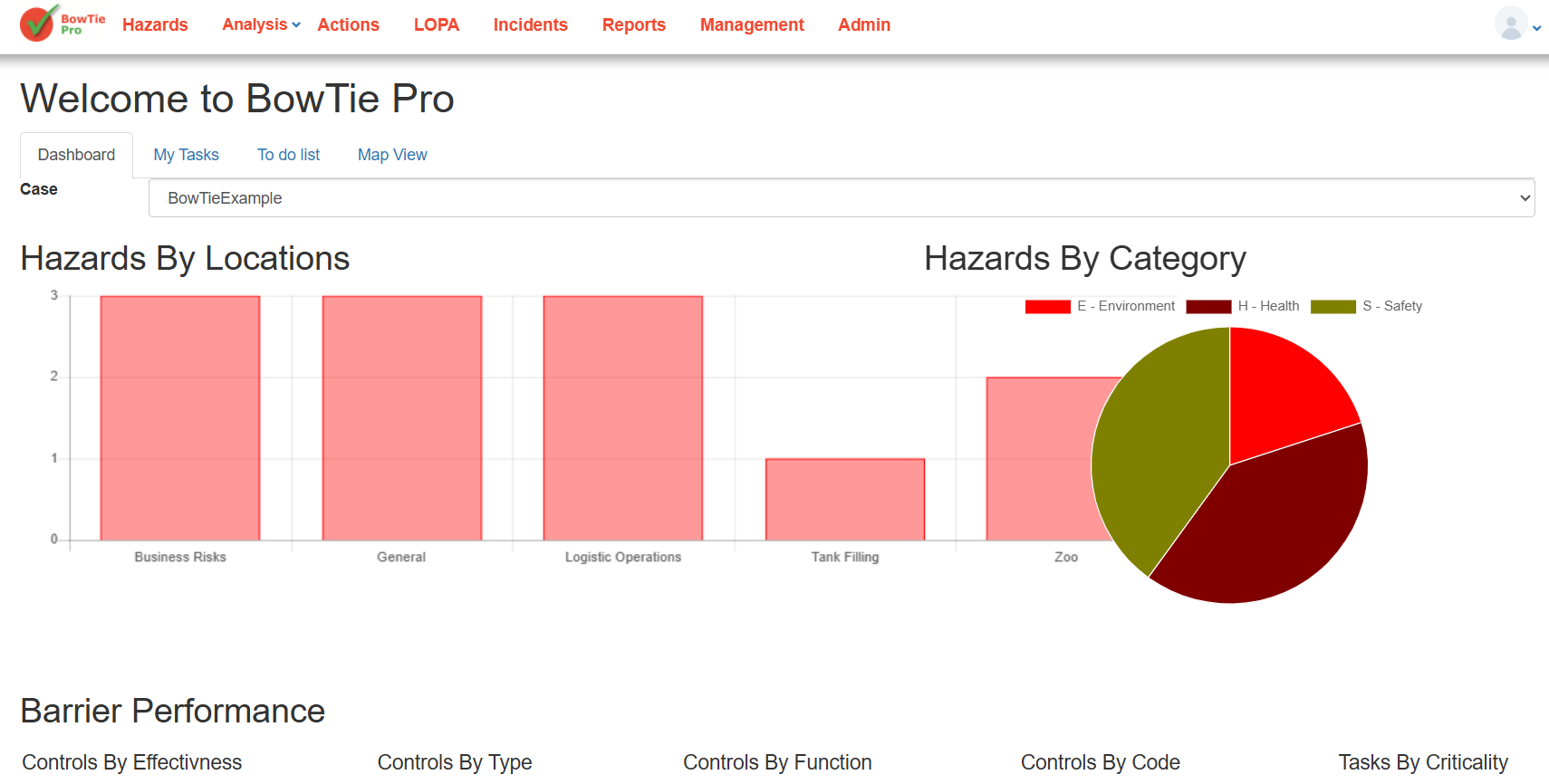
- From the top menu, click Hazards
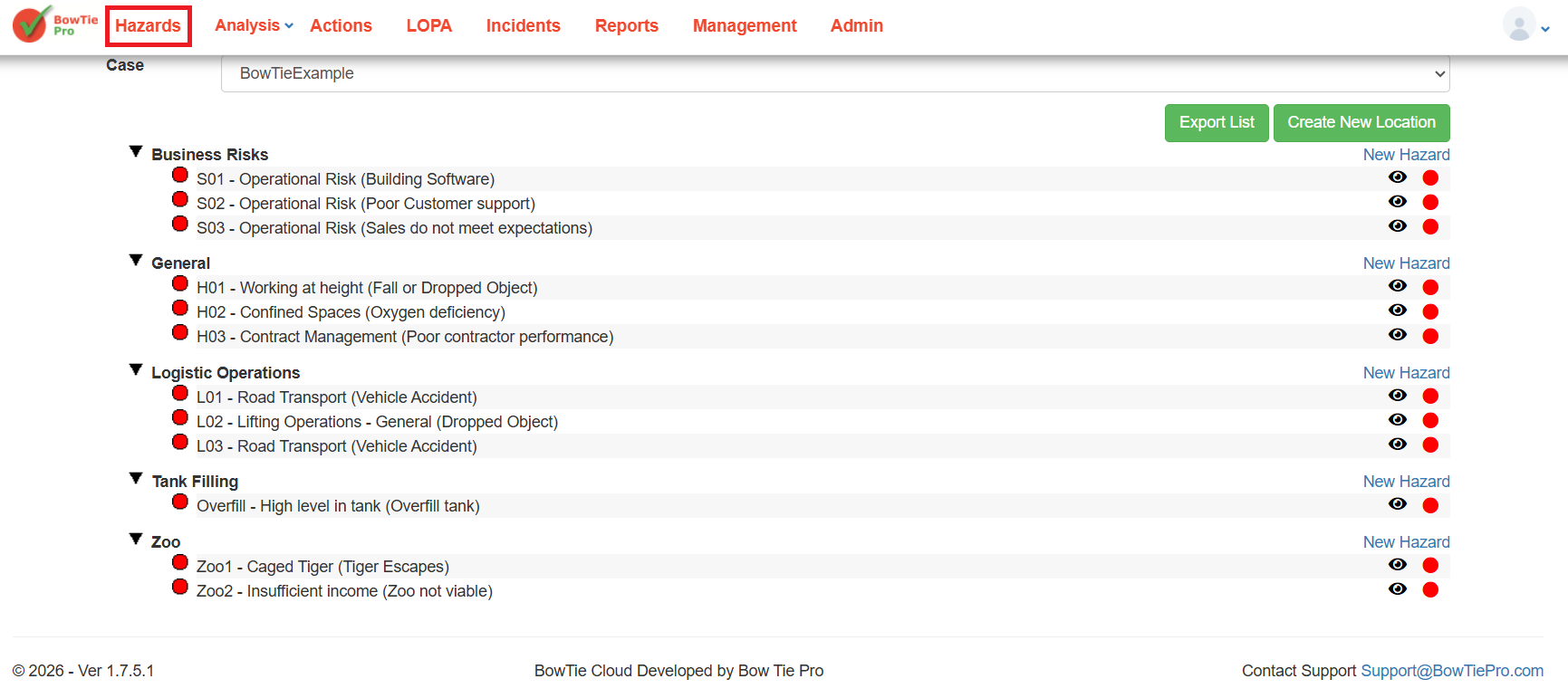
2. Open a Hazard
- Locate the required hazard in the list
- Click the 👁 (View) icon next to the hazard
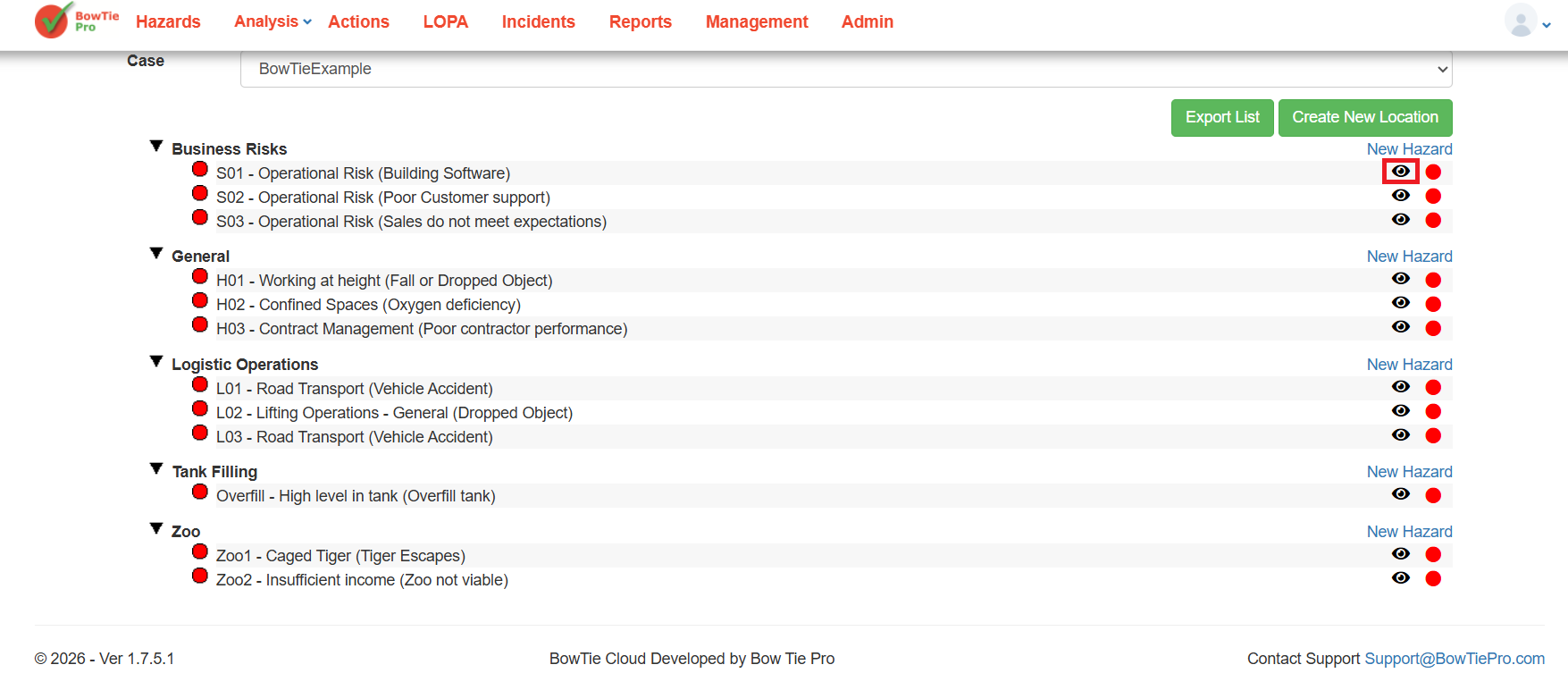
👉 This opens the Hazard Overview screen
Hazard Information Section
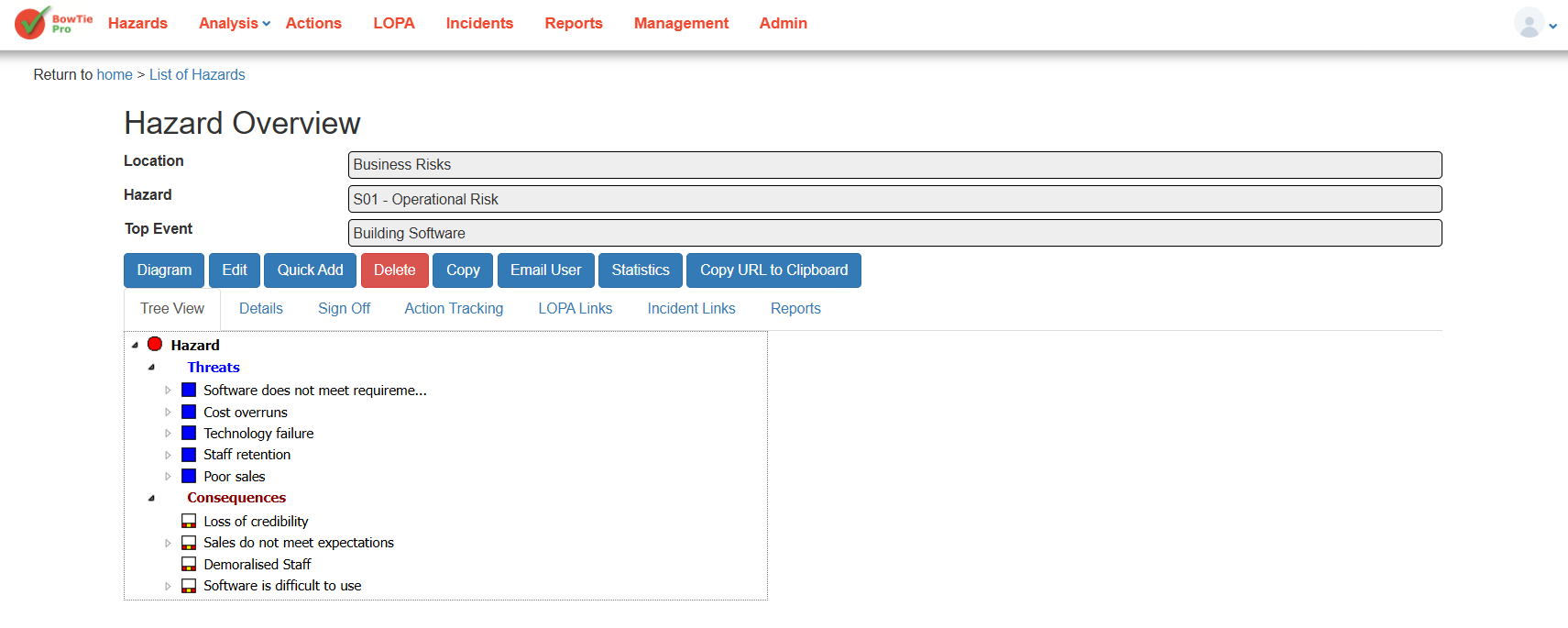
At the top of the screen, the following information is displayed:
- Location
- Hazard
- Top Event
These fields provide a summary of the selected BowTie item.
Action Buttons
The Hazard Overview screen includes several action buttons.
Diagram
Opens the BowTie diagram view for the selected hazard.
Edit
Allows you to modify the hazard details.
Quick Add
Used to quickly add:
- Threats
- Consequences
- Controls
Delete
Removes the hazard from the system.
Copy
Creates a duplicate of the hazard.
Email User
Allows hazard information to be shared via email.
Statistics
Displays statistical information related to the hazard.
Copy URL to Clipboard
Copies a direct link to the hazard overview screen.
Navigation Tabs
The screen also contains multiple navigation tabs.
Tree View
Displays the BowTie structure including:
- Threats
- Consequences
- Related hierarchy
Details
Shows additional information related to the hazard.
Sign Off
Used for review or approval workflows.
Action Tracking
Displays linked actions and follow-up activities.
LOPA Links
Shows associated LOPA assessments and links.
Incident Links
Displays related incidents connected to the hazard.
Reports
Provides reporting options for the selected hazard.
Tree View Structure
Within the Tree View:
Threats
Threats represent causes that may lead to the top event.
Examples:
- Cost overruns
- Technology failure
- Staff retention
Consequences
Consequences represent outcomes that may occur if the top event happens.
Examples:
- Loss of credibility
- Sales do not meet expectations
- Demoralised staff
The Hazard Overview screen acts as the central management area for BowTie analysis in BowTiePro. It provides access to the complete hazard structure, controls, actions, diagrams, and reporting tools needed for effective risk management.