
Overview
BowTiePro allows users to export or print BowTie diagrams for reporting, presentations, reviews, and documentation purposes.
The export and print functions are available directly within the Diagram View toolbar.
Accessing Diagram View
Step 1: Open the Hazards Section
From the top navigation menu:
- Click Hazards
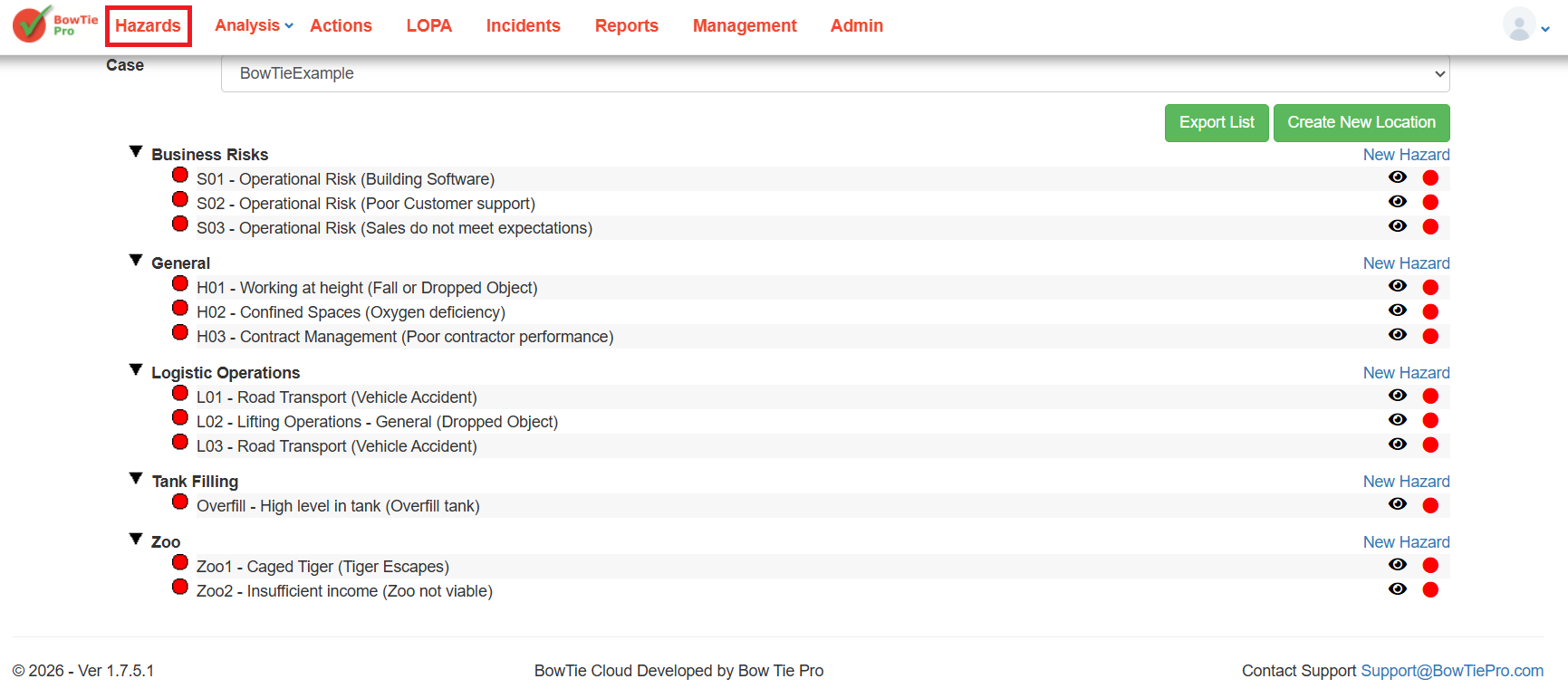
This opens the Hazard List screen.
Step 2: Open a Hazard
Locate the required hazard and click the 👁 (View) icon.
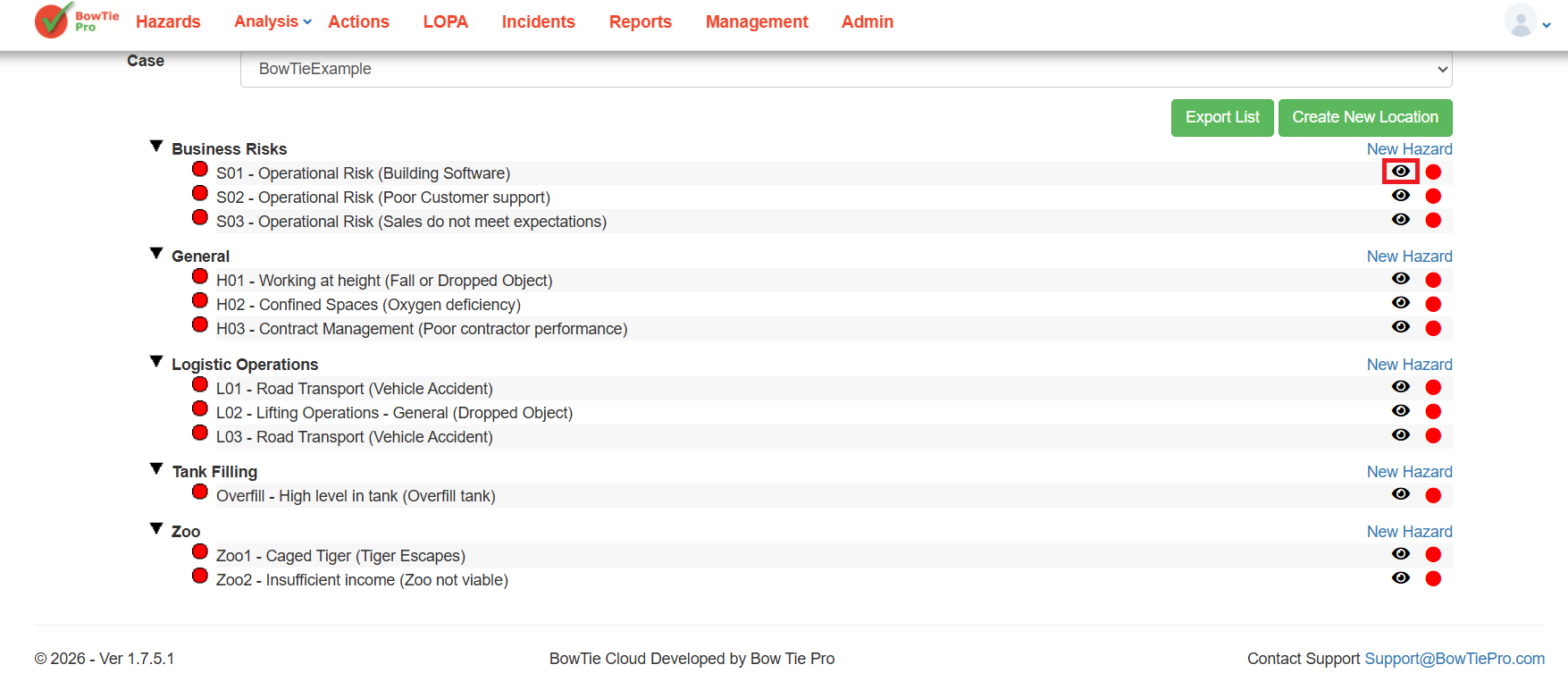
This opens the Hazard Overview screen.
Step 3: Open Diagram View
On the Hazard Overview screen:
- Click Diagram
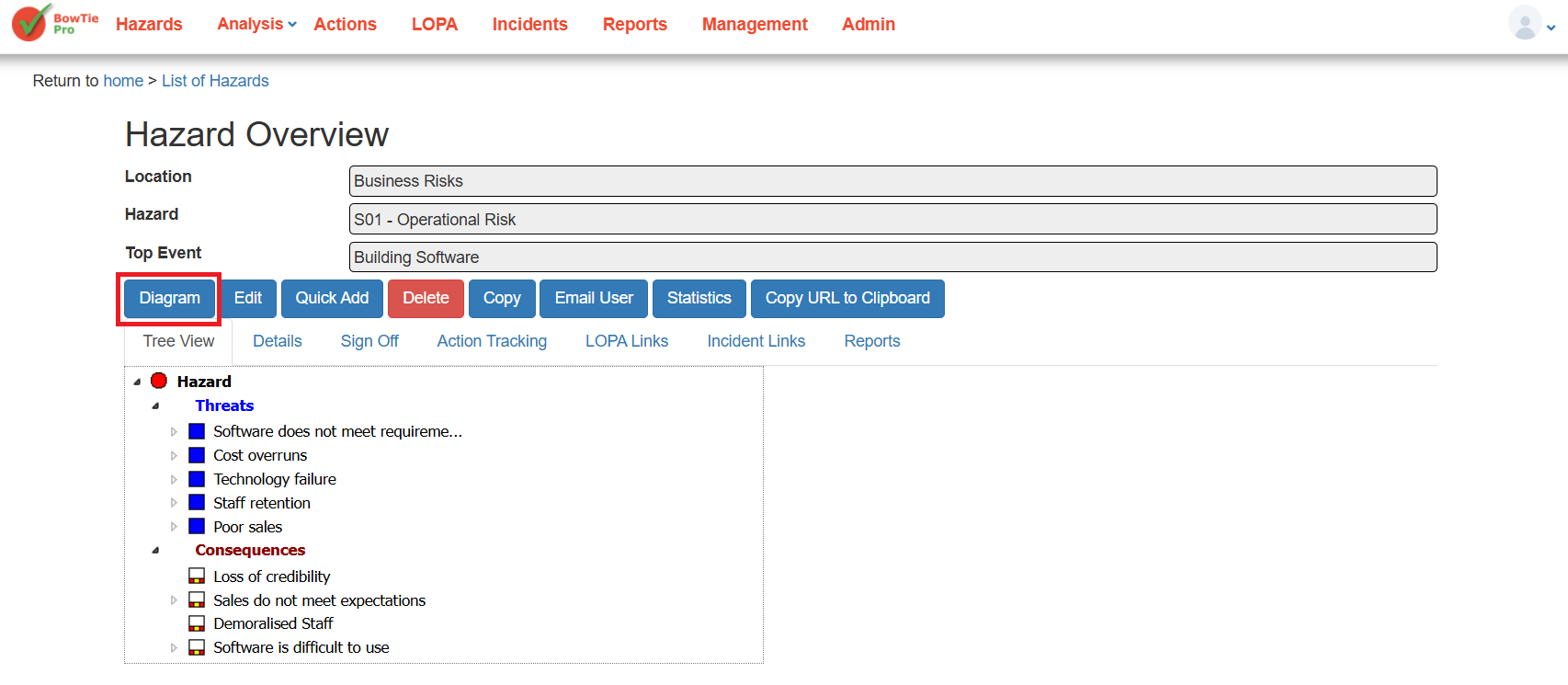
The BowTie Diagram View screen will open.
Exporting the Diagram
Step 1: Review the Diagram Layout
Before exporting:
- Adjust the diagram view if required
- Expand or collapse sections
- Select the preferred diagram display option
- Ensure all required information is visible
This helps ensure the exported image is clear and readable.
Step 2: Locate the Export Toolbar
At the top of the Diagram View screen, locate the toolbar section. The toolbar contains several diagram tools, including the PNG export option.
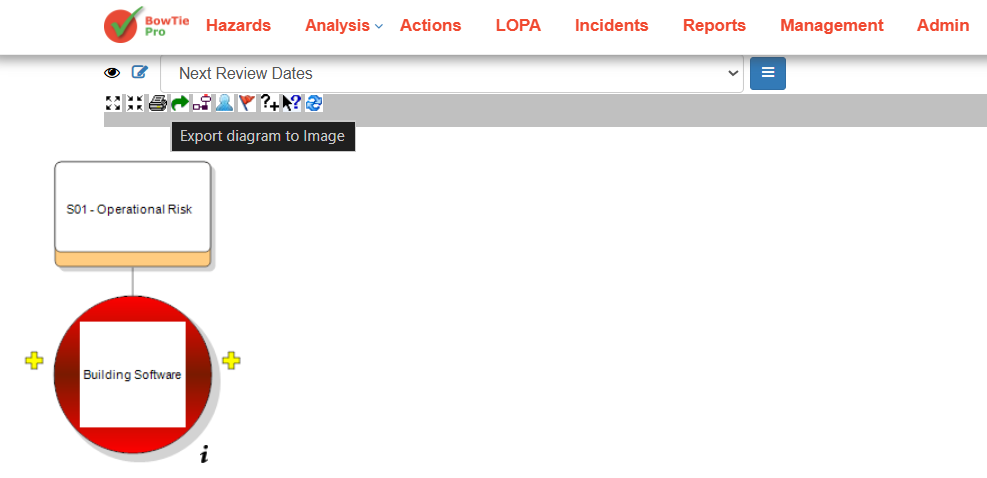
Step 3: Export as PNG
Click the PNG export icon in the toolbar.
BowTiePro will generate and download the current diagram as a PNG image file.
The exported image can then be:
- Shared with stakeholders
- Added to reports
- Used in presentations
- Stored for future reference