Overview
BowTie Pro allows users to customize how BowTie diagrams are displayed. These settings help improve readability, adjust diagram appearance, and control what information is shown within the diagram view.
Diagram display settings can be configured for hazards, threats, consequences, controls, fonts, colours, and other visual elements.
Accessing Diagram Display Options
To open the Diagram Options screen:
- Open the required hazard.
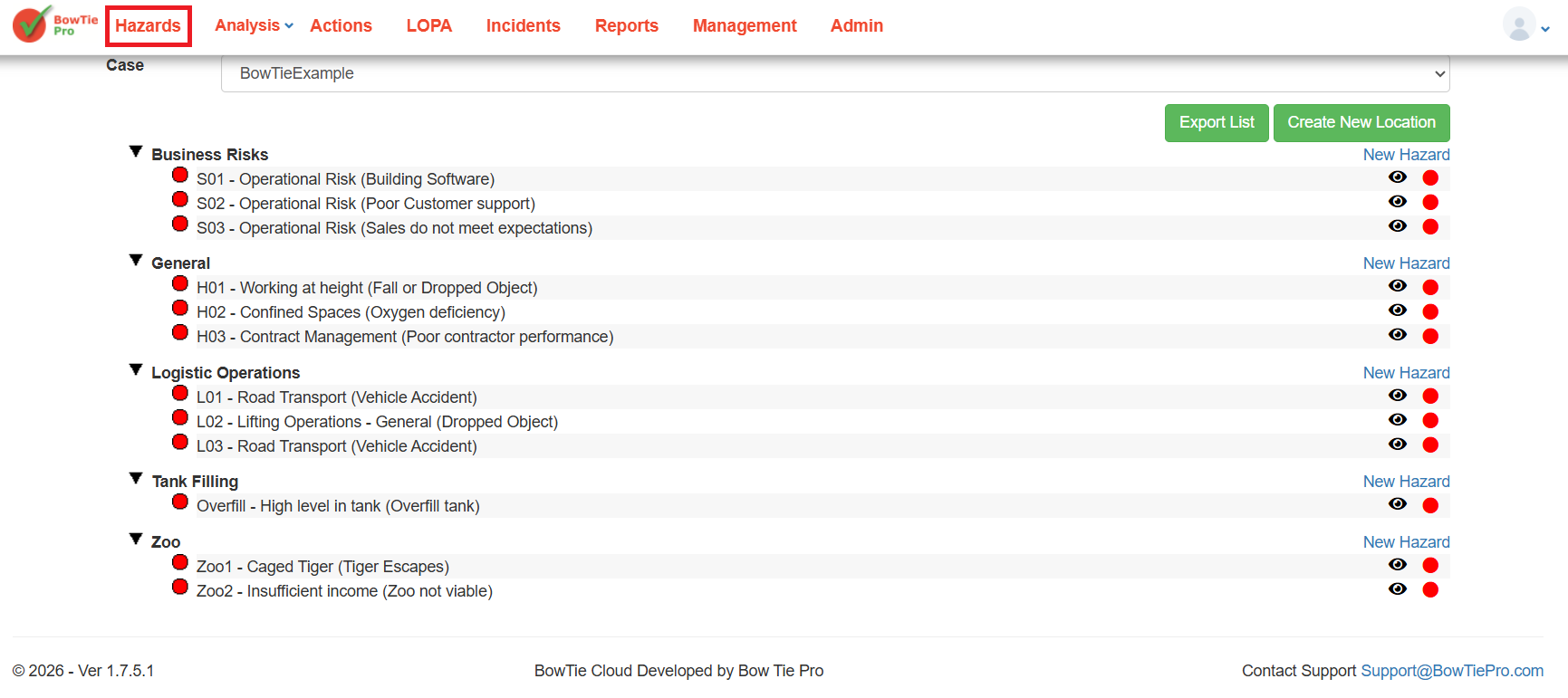
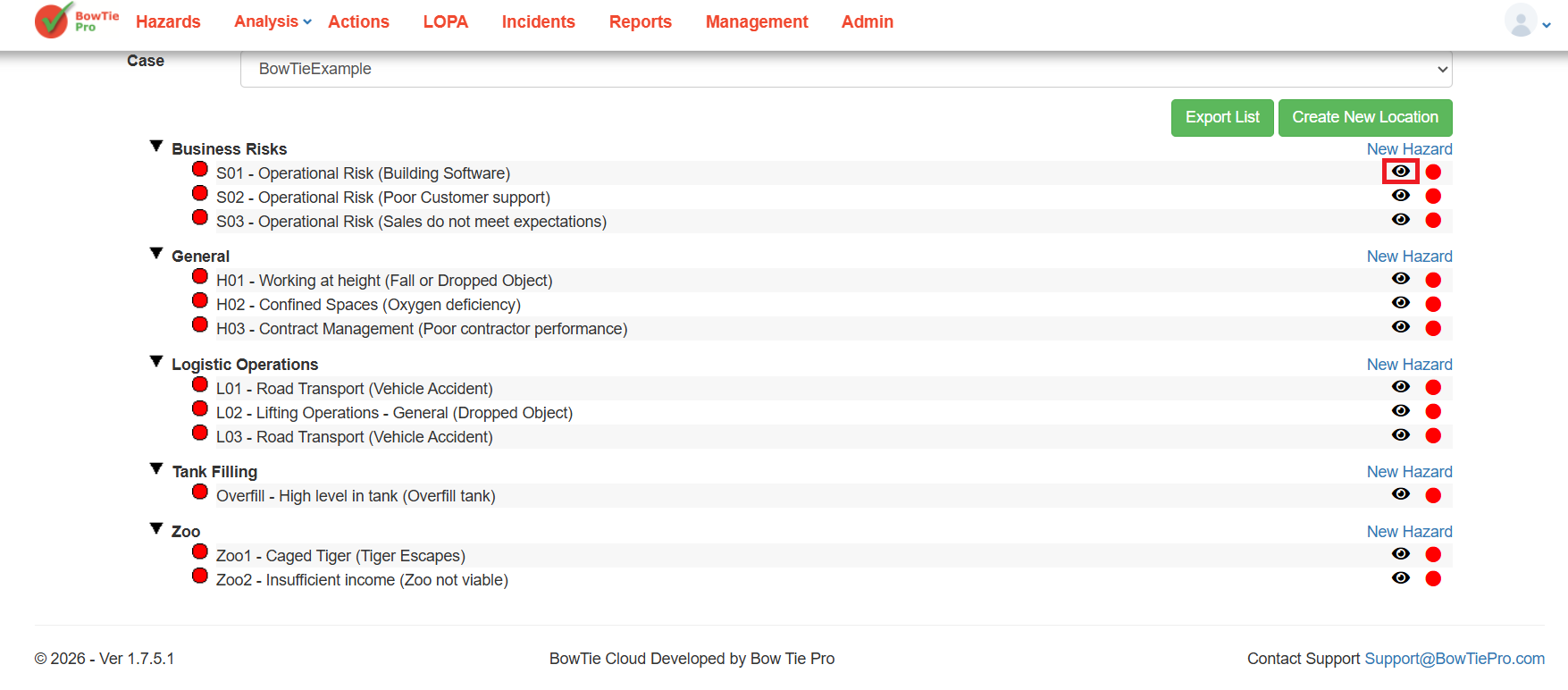
- Click the 👁 (View) icon next to the Diagram
- Click the Diagram Options icon from the diagram toolbar.
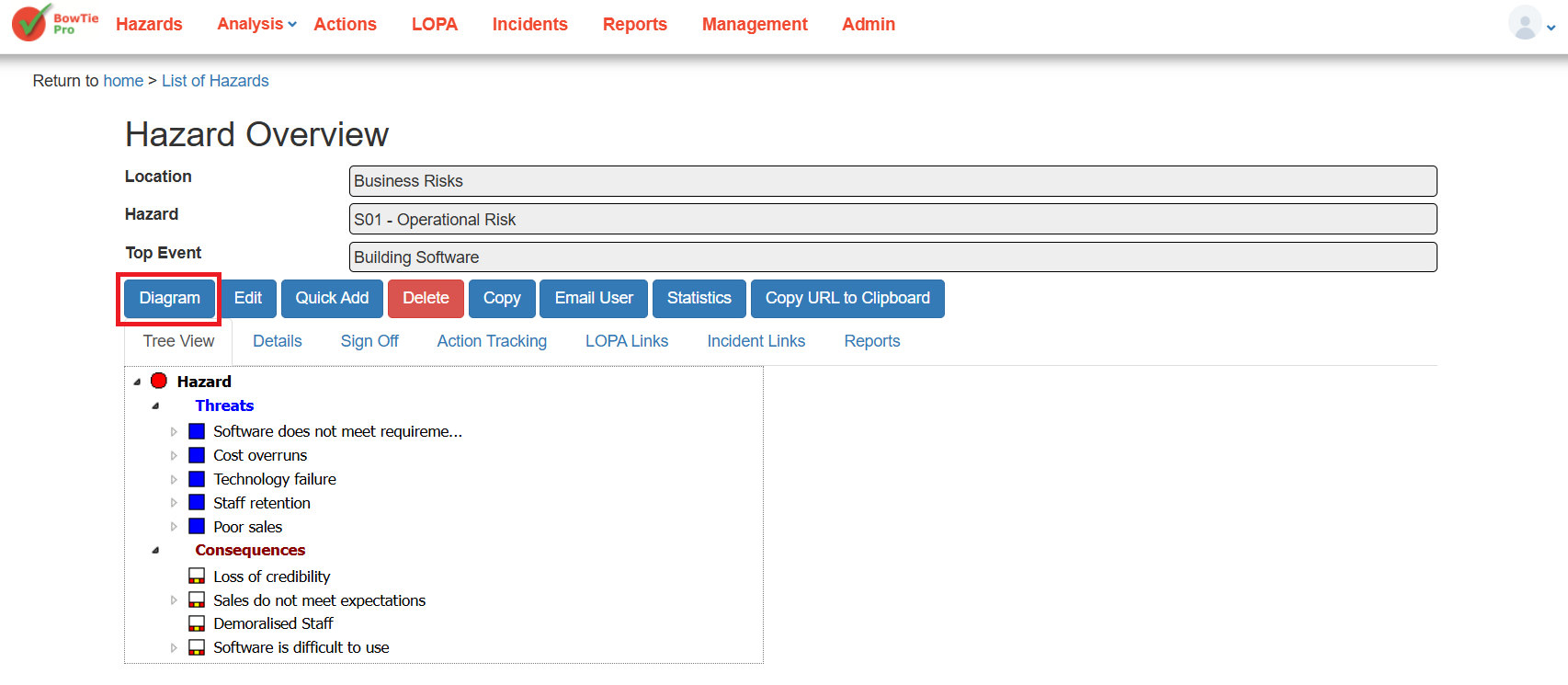
The Diagram Options screen will open.
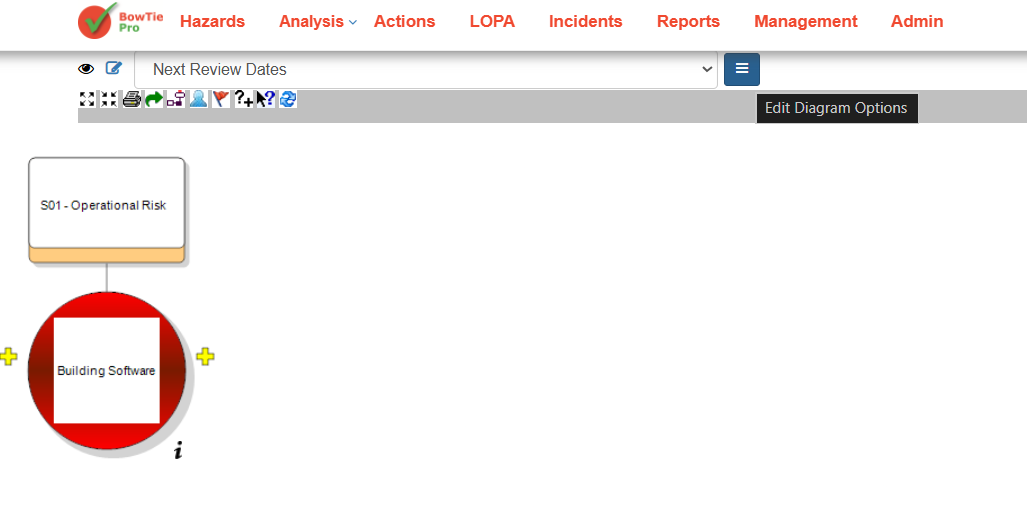
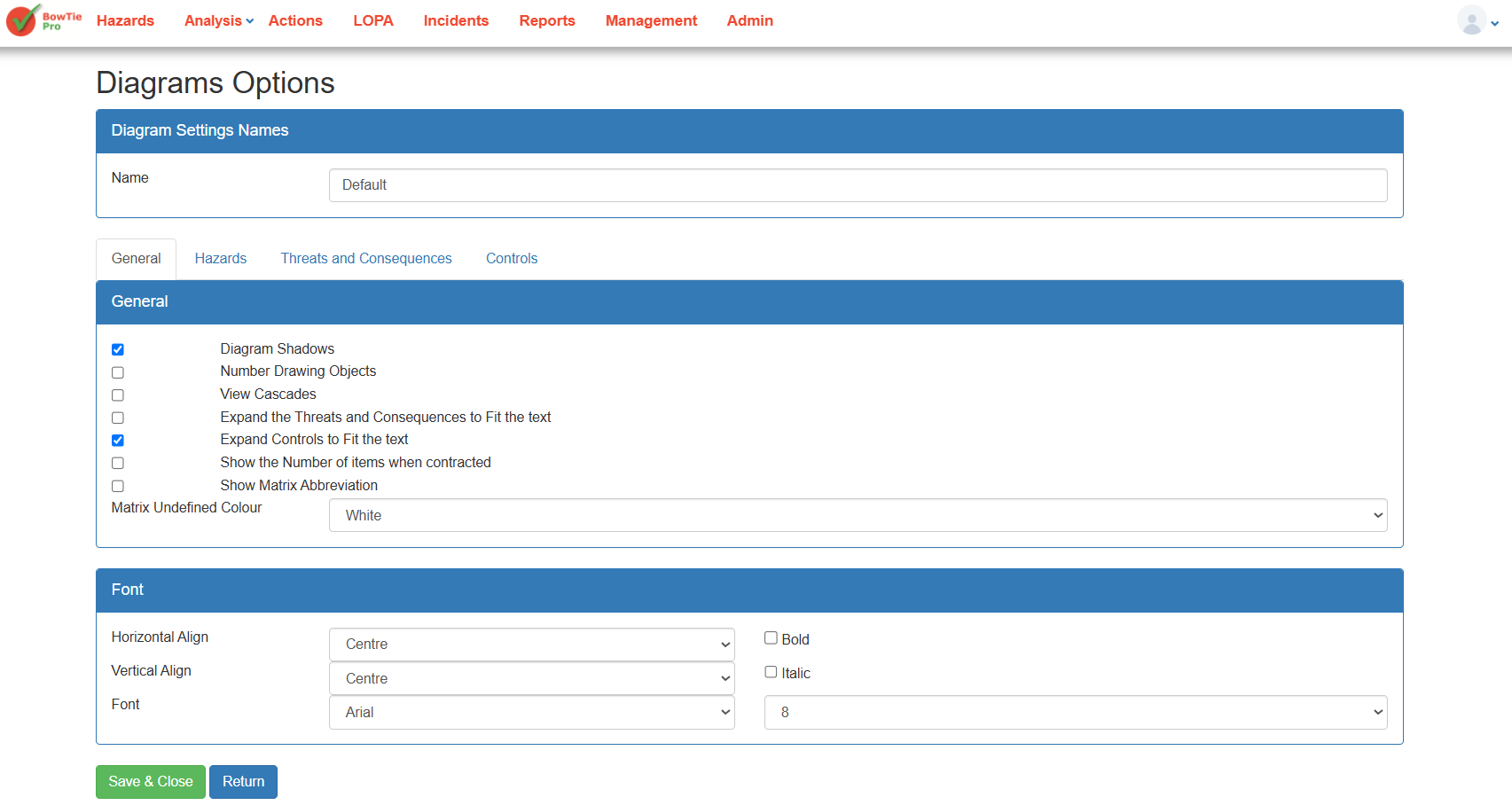
Diagram Settings Name
At the top of the page, users can define a name for the diagram configuration.
Example:
- Default
- Next Review Dates
This allows multiple diagram display configurations to be created and reused.
General Display Options
The General tab contains options that control overall diagram behavior and visibility.
Available settings may include:
- Diagram Shadows
- Number Drawing Objects
- View Cascades
- Expand Threats and Consequences to Fit Text
- Expand Controls to Fit Text
- Show Number of Items When Contracted
- Show Matrix Abbreviation
- Matrix Undefined Colour
These settings help users control how information is presented within the diagram.
Font Settings
The Font section allows users to customize text appearance within diagrams.
Available options include:
- Horizontal Alignment
- Vertical Alignment
- Font Type
- Font Size
- Bold
- Italic
These settings improve readability and support different diagram presentation styles.
Hazards Tab
The Hazards tab contains display settings related to hazard appearance within the diagram.
Users can configure how hazards are displayed visually.
Threats and Consequences Tab
The Threats and Consequences tab controls the appearance and visibility of:
- Threat nodes
- Consequence nodes
- Labels
- Colours
- Display behaviors
This helps users tailor diagram layouts based on reporting or operational needs.
Controls Tab
The Controls tab allows users to customize how prevention and recovery controls appear within the BowTie diagram.
Users may configure:
- Control display styles
- Colours
- Text visibility
- Layout preferences
Saving Diagram Options
After making the required changes:
- Review the updated settings.
- Click Save or Save & Close.
- Reopen the diagram to view the updated display configuration if required.