
Overview
The Threats and Consequences are the definitions of branches that controls belong. Controls are the heart of any bowtie. They are the barriers that stop a threat from causing the top event, or that reduce the impact of a consequence once it has occurred. In BowTie Pro, controls are never created in isolation — they are always linked directly to a threat or a consequence.
- A threat is an event, condition, or circumstance that has the potential to cause a hazardous event or lead to the top event.
- A consequence is the potential outcome or impact that may result from a top event, such as injury, environmental harm, equipment damage, or financial loss.
The Consequence is usually also assigned a risk rating via a Risk Matrix.
1. Creating a Threat using the bowtie diagram
To open the bowtie diagram
- Navigating to Hazards
- Click the red circle
 to the right of the bowtie that needs updated
This will open the diagram and show a circle with the top event text in the middle.
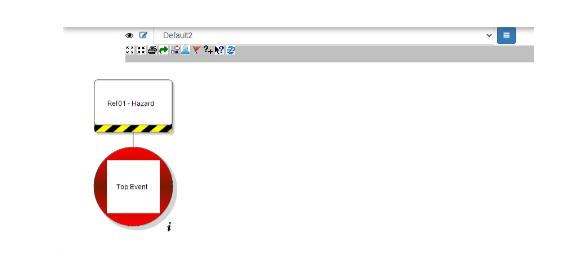
- Left click on the circle and an action popup menu will appear
- Now select the “Add Threat” option
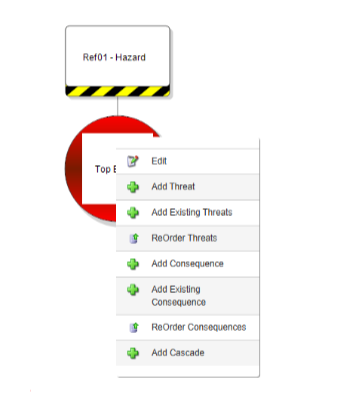
This will open the Threat Edit screen.
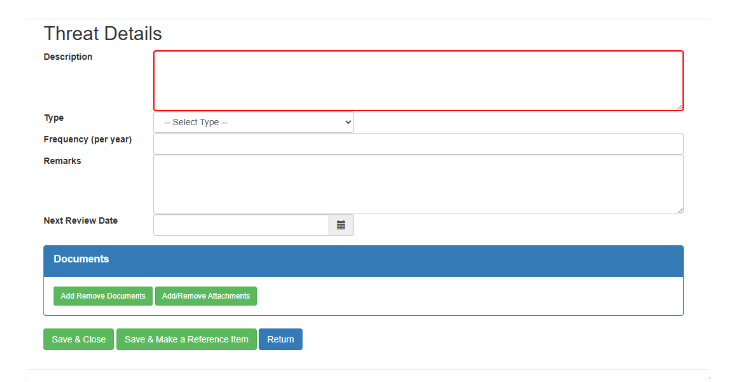
The Description is mandatory the other fields are optional
- Description – Examples might include Driver fatigue, Substandard Equipment, Inadequate planning
- Threat Type – This determines the colour of the Threat examples include Design, Environment, Regulatory
- Frequency – This is the number of times this happens. This is connected to the LOPA module
- Remarks – This allows a more detailed description of the circumstances
- Next Review Date – This allows the Threat to be identified in review reports
- Documents – Both corporate documents and attachments can be linked if required
Once the threat is entered click “Save & Close” to return to the diagram screen. A plus sign will appear to the left of the top event and clicking on the sign will show the Threat.
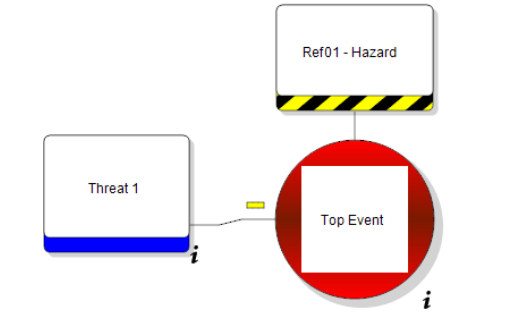
To Edit a Threat Left Click on the Threat and select “Edit” from the menu.
2. Creating a Consequence using the bowtie diagram
To add a new Consequence, from the menu on the top event select “Add Consequence”
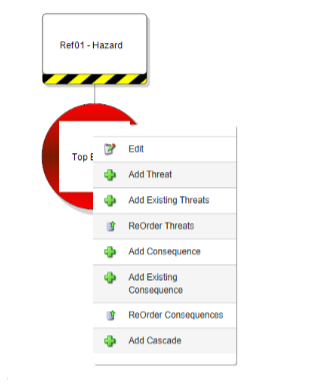
This will open the Consequence screen
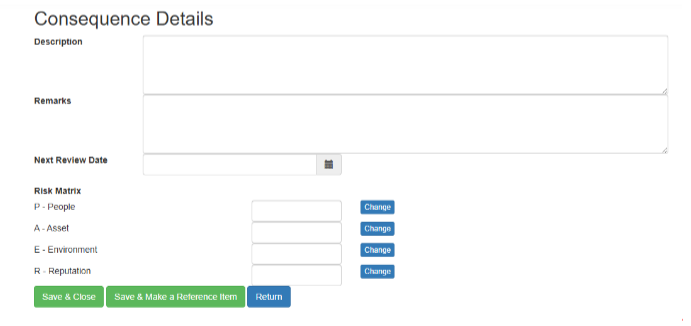
The Description is mandatory the other fields are optional
- Description – Examples might include Serious Injury, Damage to Equipment, Environmental Damage
- Remarks – This allows a more detailed description of the circumstances
- Next Review Date – This allows the Threat to be identified in review reports
A Risk Matrix is usually assigned to a consequence. Within BowTie Pro the risk matrix can be extensively customised and can be assigned both before and after the relevant controls.
To set a Risk Matrix value click on the “Change” button to the right of the category and the matrix will be displayed
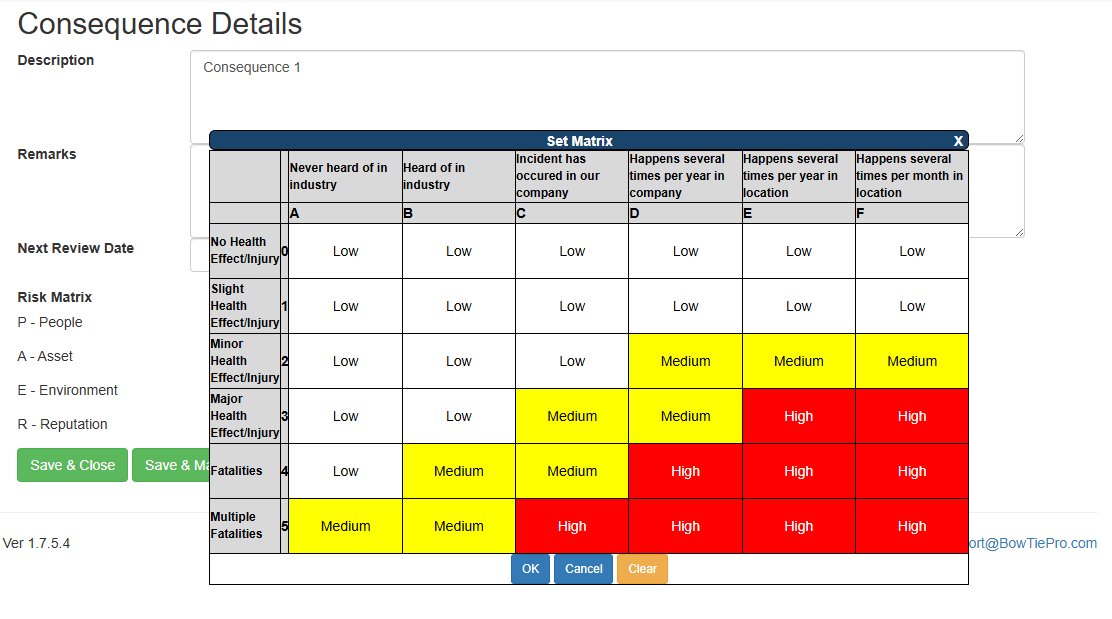
Click on the appropriate box, this will be shown as selected and then press OK
Continue selecting the appropriate values until the risk assessment is complete
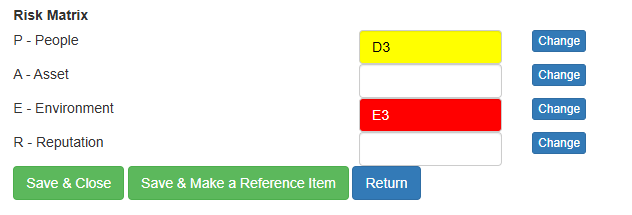
More details on the Risk Matrix can be found in the Risk Matrix Overview page
Press “Save & Close” to return to the Diagram
There will now be a plus sign to the right of the top event. Clicking on the plus will expand the consequences and left clicking on the consequence will show a popup menu where the “Edit” option can be selected.
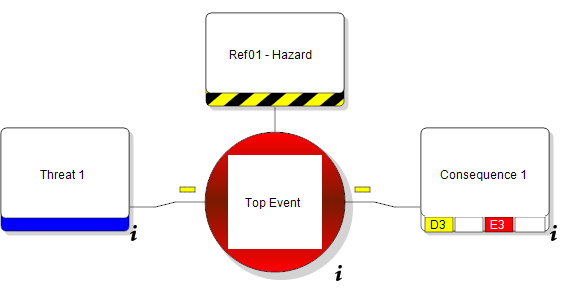
3. Adding Threats and Consequences from the Hazard Overview screen
- Go to Hazards
- Navigate to the Hazards screen on the menu 👁 (View) icon next to a hazard that you wish to manage
- This opens the Hazard Overview screen
Using the tree click on either the Threat or Consequence heading on the tree
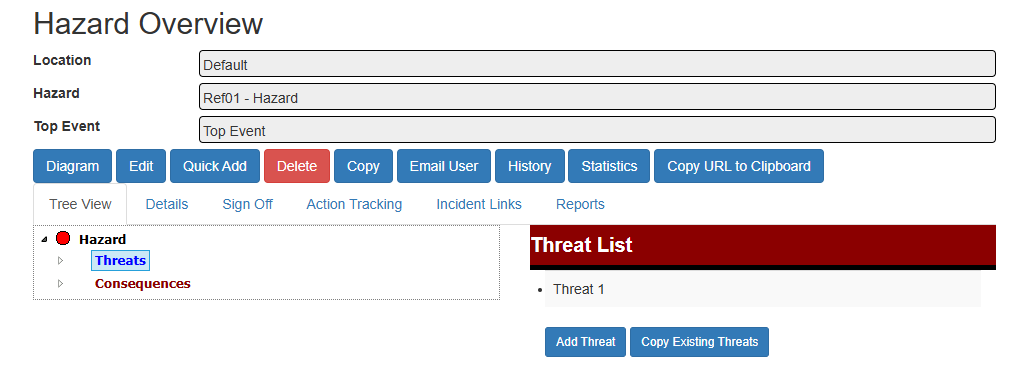
On the right hand side a button called “Add Threat” or “Add Consequence” will be displayed. Click on these buttons to add a new item
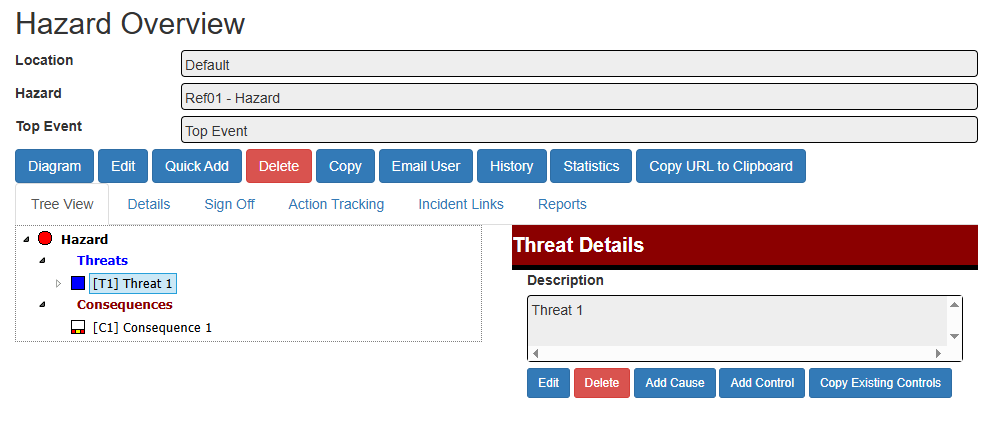
To Edit a Threat or Consequence, select the item from the tree and then click the “Edit” button on the right hand side