
Overview
Risk data is only useful if it stays current. Once a bowtie has been created, you’ll often need to revisit it, to refine the description, adjust the top event, update its classification, or reschedule a review. BowTie Pro makes this straightforward through the BowTie Diagram and Hazard Overview screens, which act as the central hubs for viewing and editing everything about a single hazard.
This guide walks you through editing an existing hazard from start to finish.
How to Open the Hazard Screen
1. Go to the Hazards Section
- From the top menu, click Hazards
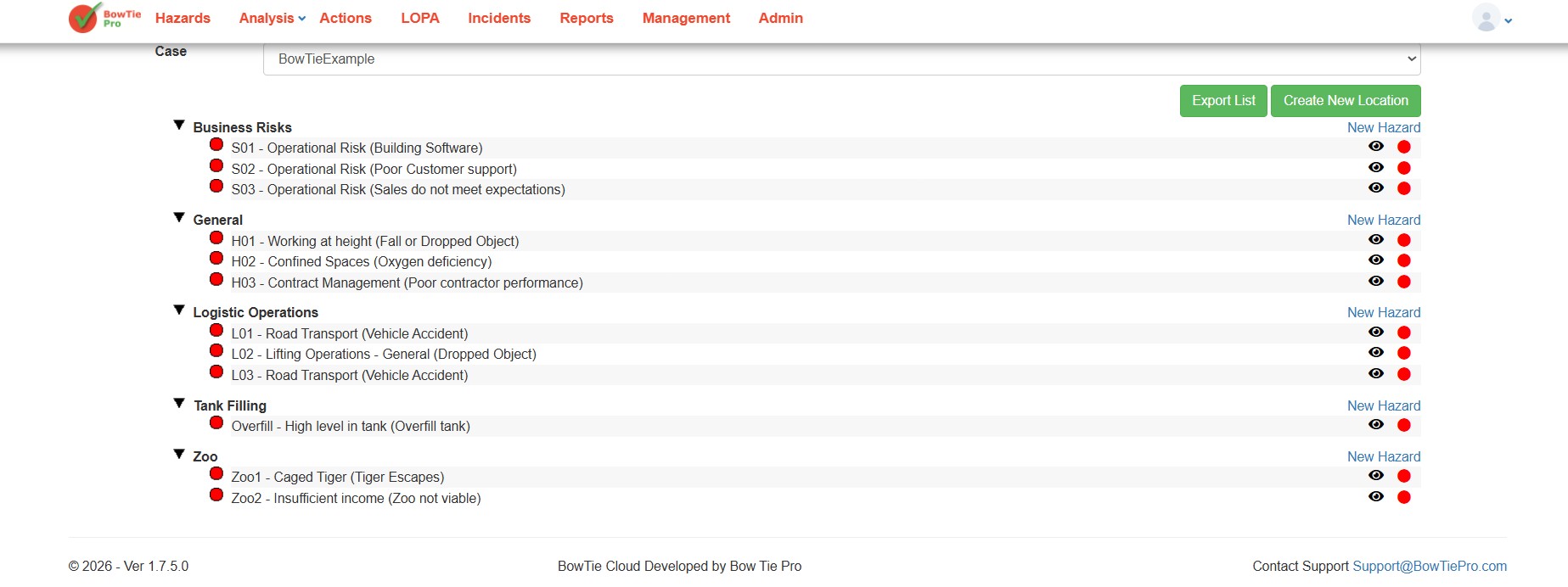
- This opens the Hazard List, showing your hazards grouped by location.
2. Open a Hazard
- Locate the hazard you want to edit
- Click either the
 to open the diagram
- 👁 (View) to open the overview screen

Opening the bowtie edit screen from the diagram
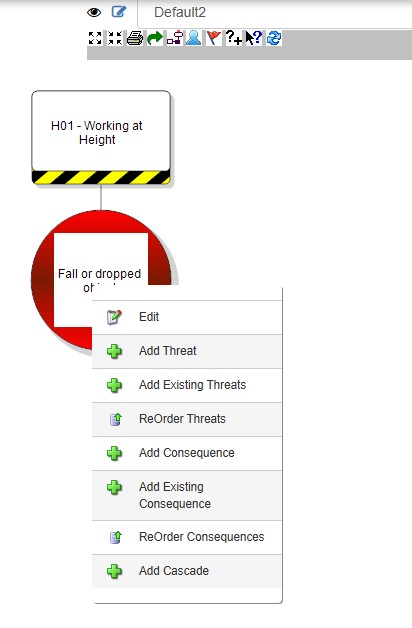
From the diagram you have a choice of either left clicking the mouse over the central top event ball and then selecting “Edit” from the menu box that appears or by selecting the Edit button on the menu bar 
Opening the bowtie edit screen from the Hazard Overview
Click “Edit”
- On the Hazard Overview screen, click the Edit button. This will open the Hazard Details form with existing values already filled.
3. Editing the Bowtie
Updating Hazard Information
On the Hazard Details screen, you can modify the following fields:
Location
- Change the assigned location using Select Location
Reference
- Update the hazard reference code if required
Hazard
- Edit the hazard description
Top Event
- Update the top event (loss of control scenario)
Type
- Change the hazard type from the dropdown
Hazard Remarks (Optional)
- Add or update additional notes
Next Review Date (Optional)
- Modify the review date using the calendar picker
Categories (Optional)
- Update classification (Environment, Health, Safety)
The fields here are the same ones used when the hazard was first created, so any change you make simply overwrites the previous value.
Saving Changes
After making updates:
- Click Save & Update
- Your changes are saved and applied to the bowtie.
Whats Next?
Editing hazard details keeps your risk data accurate and up to date, helping ensure your BowTie analysis continues to reflect the current state of the risk. Regularly reviewing and updating hazard details also keeps key information, including review dates, classifications, and Top Events, current throughout the life of the analysis.